


To Improve user Experience and Security we Introduce Signup and login Feature in our Software.
Step 1: Sighup
Click on New User Signup Link
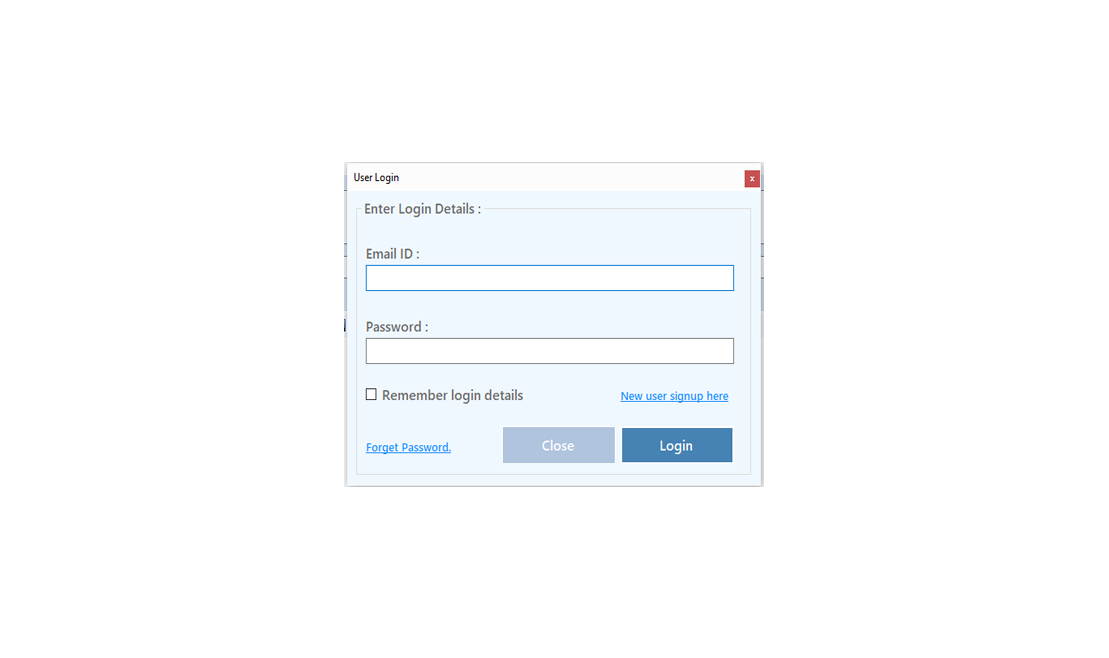
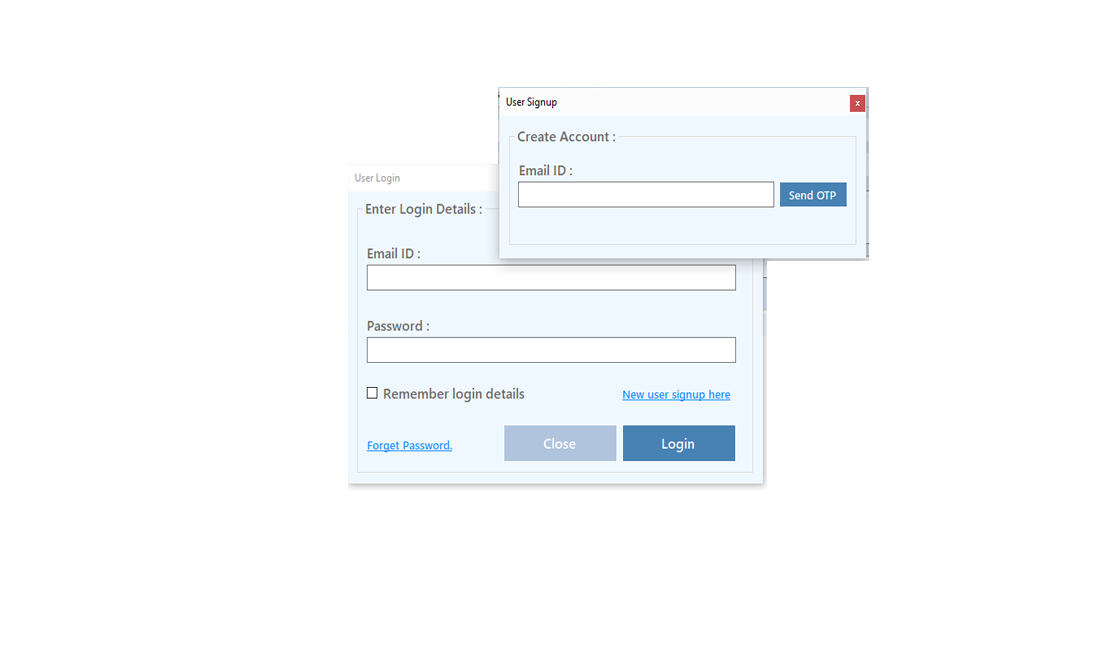
Enter your Email and click on Send OTP Button
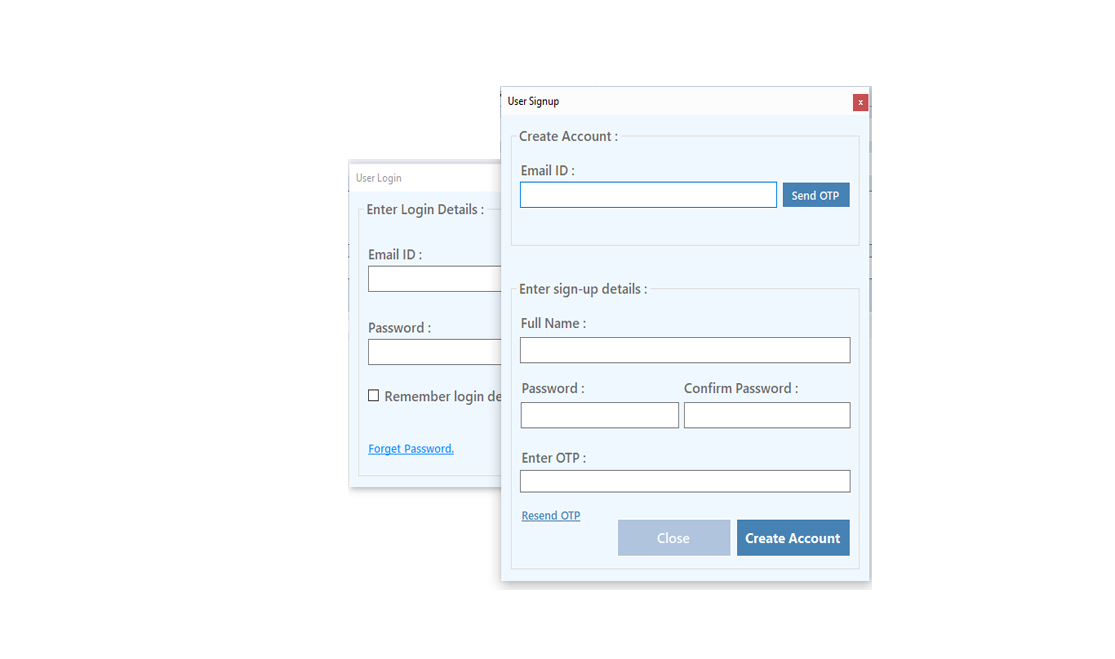
Enter OTP and Fill Details then click onCreate Account Button
Step 2: Login Your Account
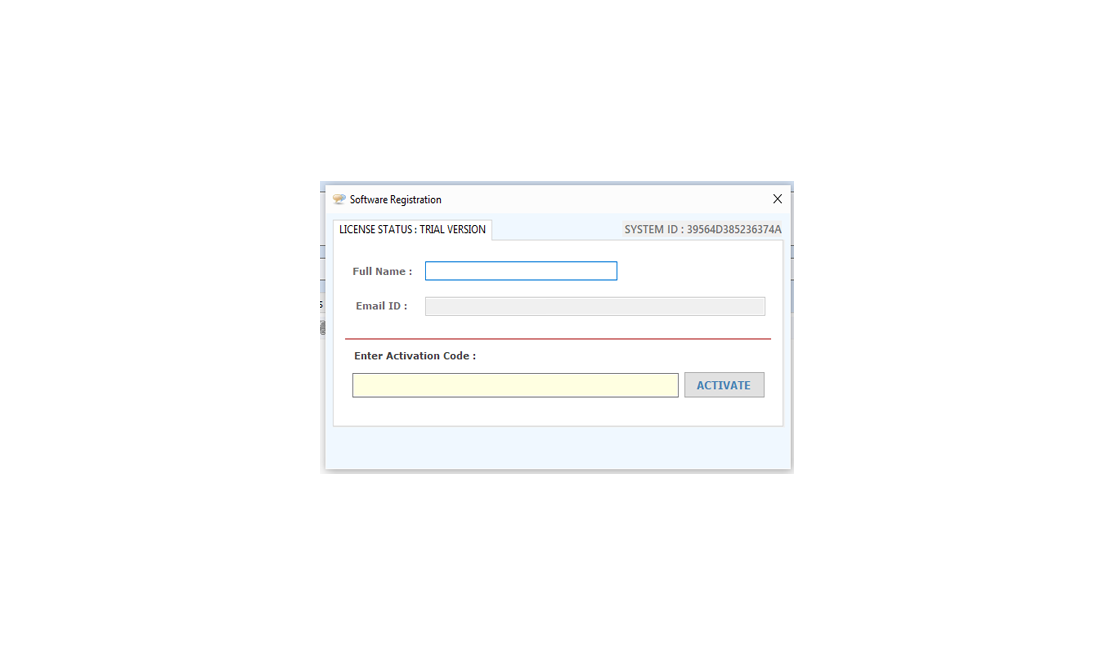
After Login you can Activate your license. The License will Assigned on the Email and always will work with that email.You can't assign license to other email after activation.
Step 1: Visit Help Menu and Select Activate

Step 2: Enter the License Key then Click on Activate Button
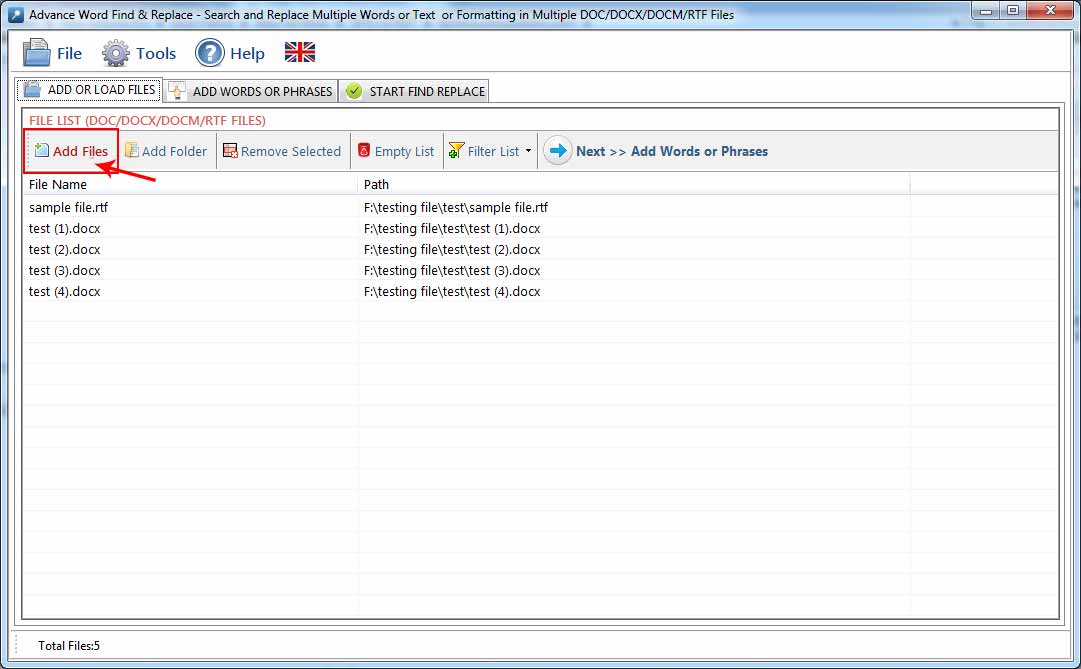
Manage Files: This option help you to manage files if you want to add or delete any file from list.
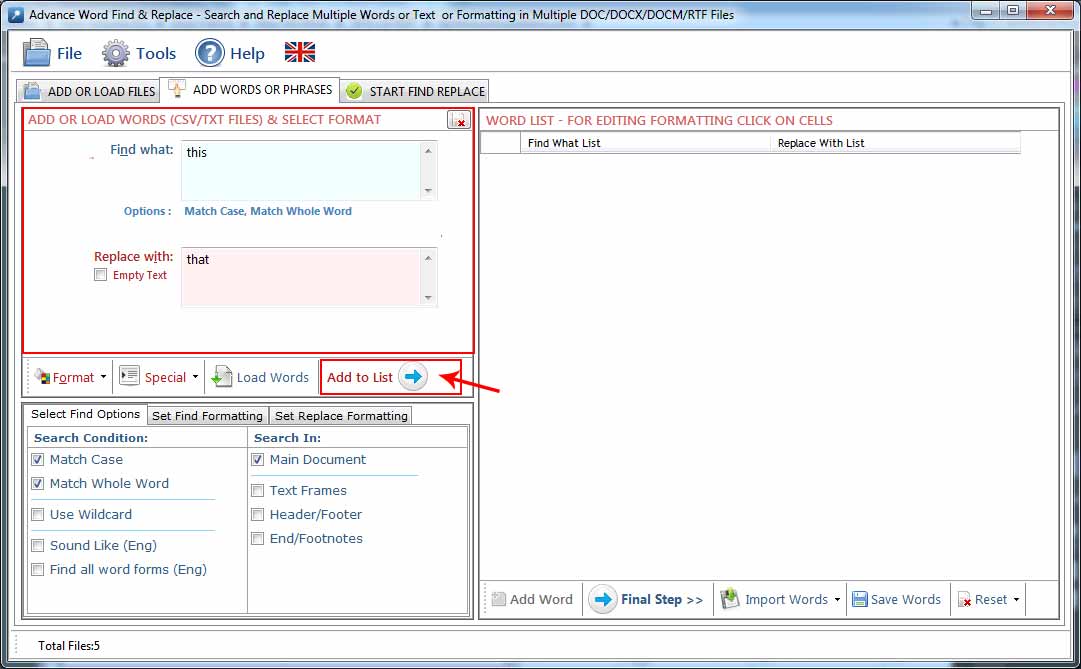
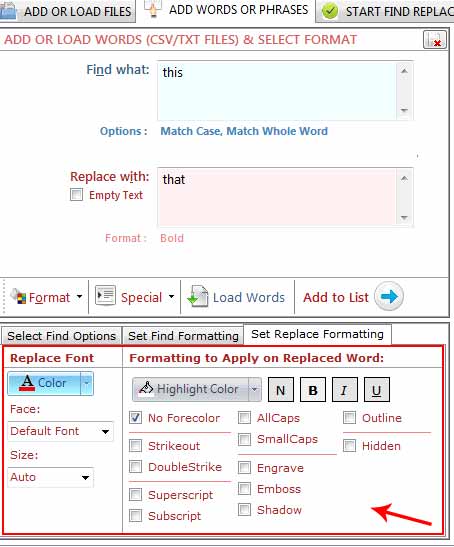
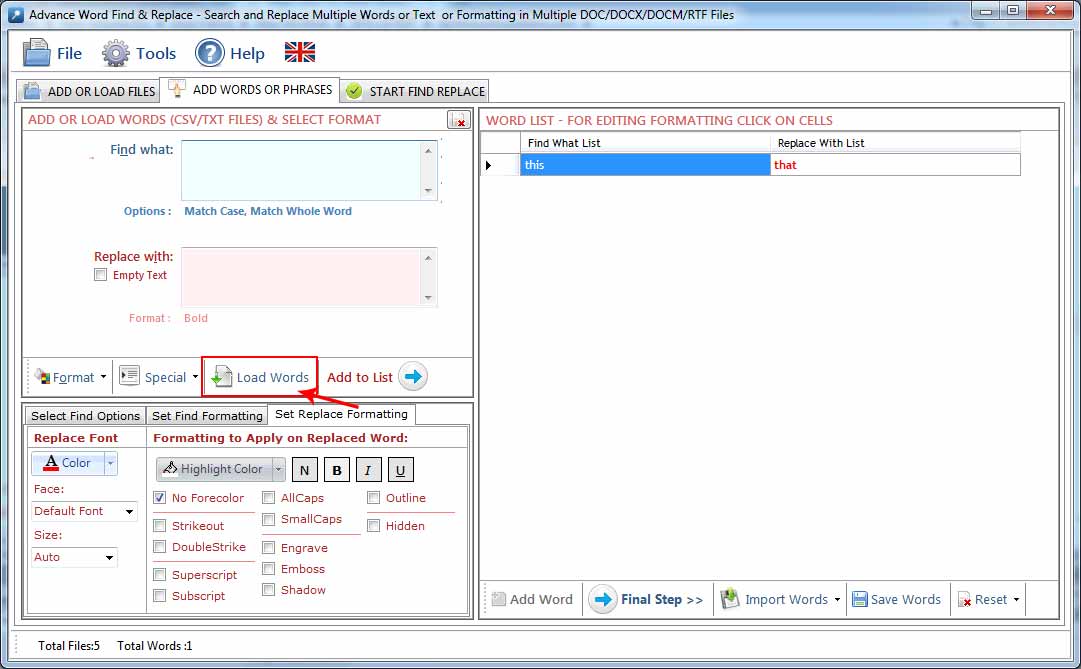
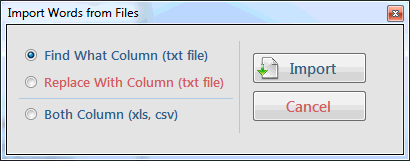
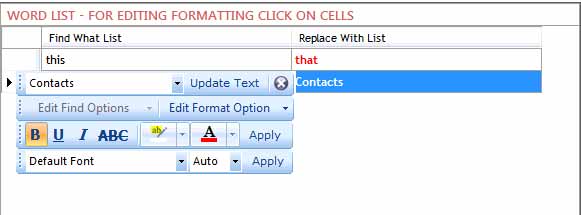
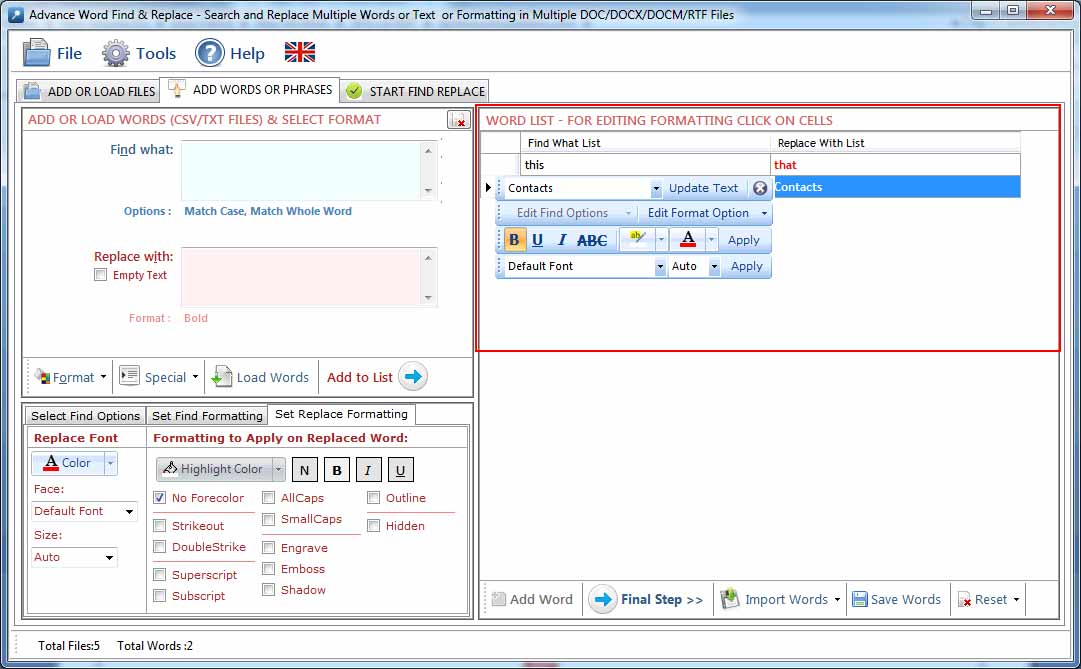
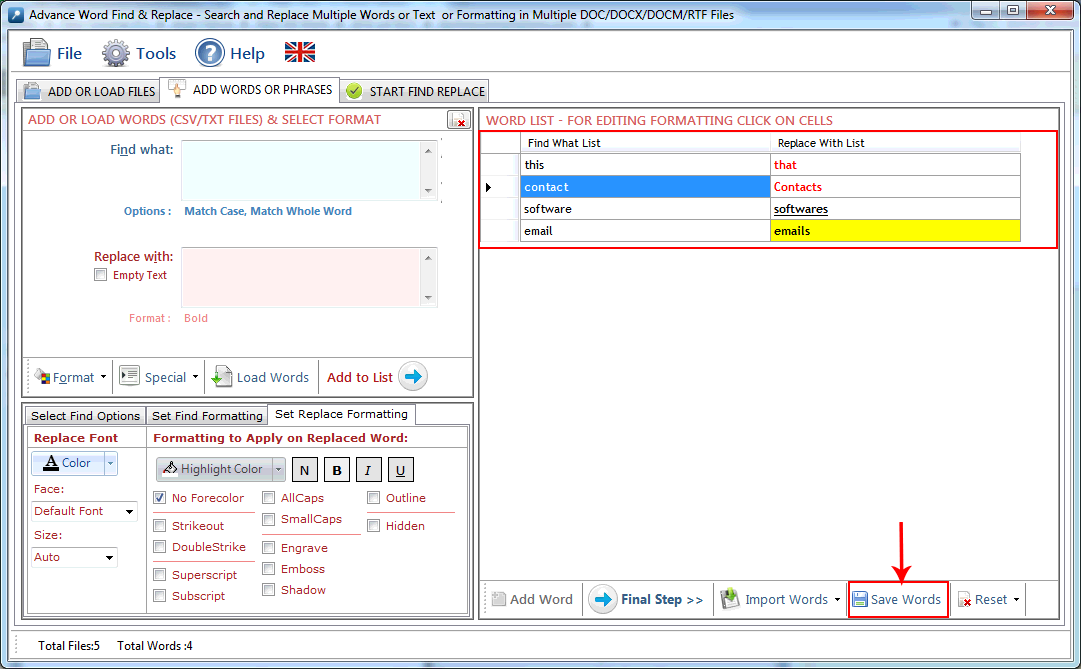
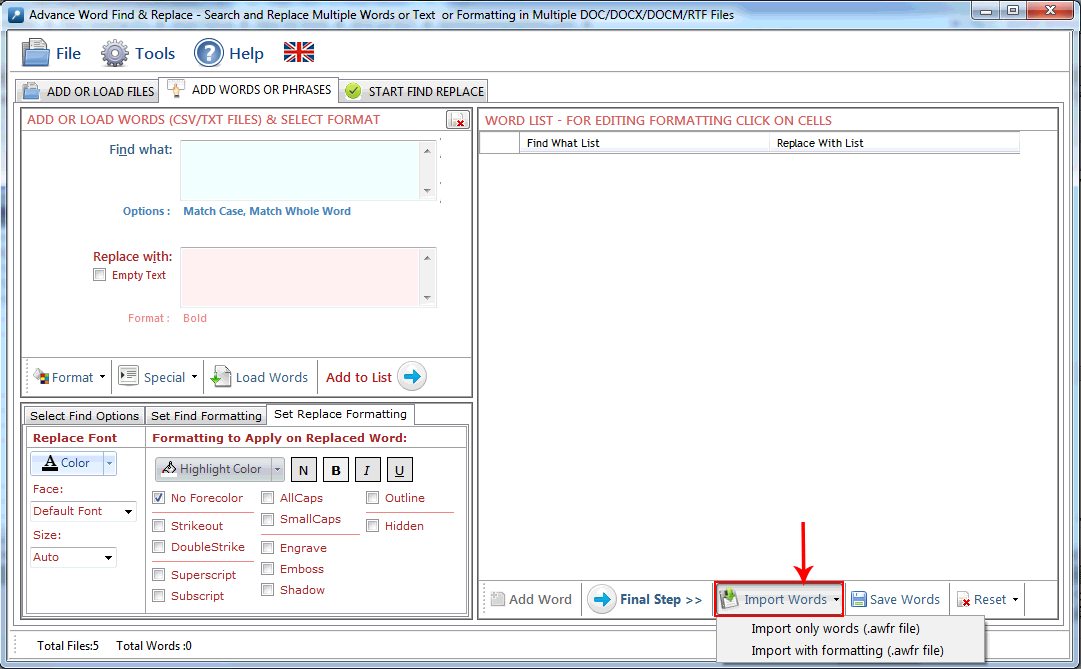
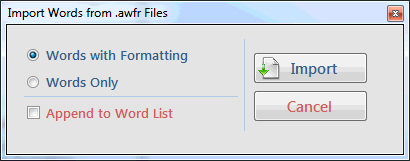
Manage Words: This option help you to manage Words if you want to add, delete or other changes any Word from list.
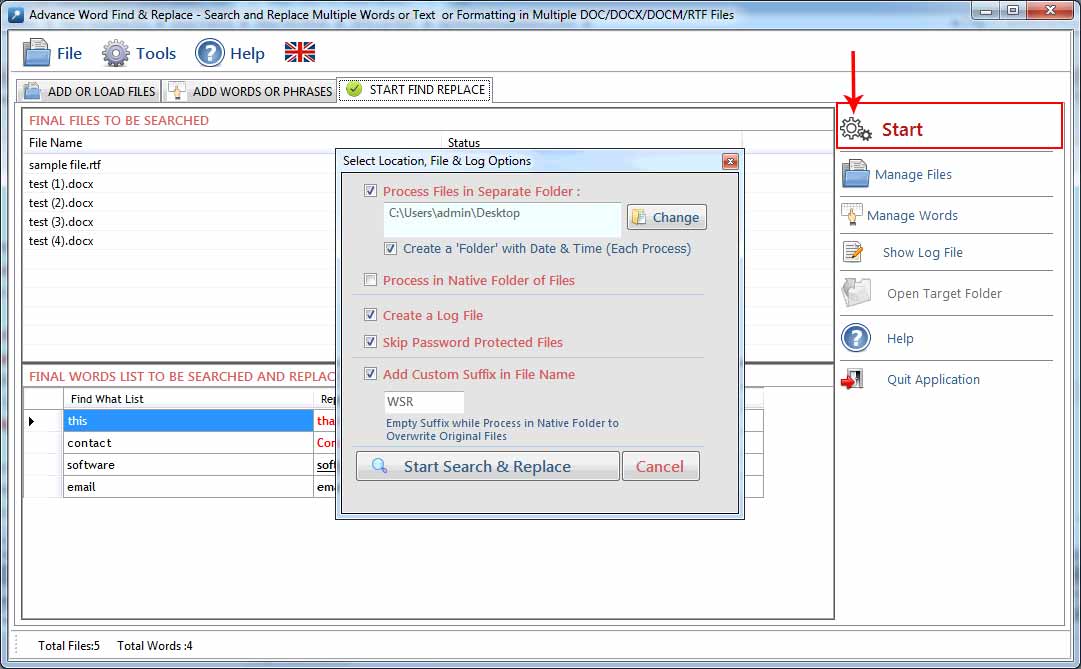
Process all Files in a Separate Folder : Check this option if you want to process all files in a single separate folder. Click on Browse button to select the folder. In this option all processed files name include a counter and suffix like "1_WSR_1.doc", "1_WSR_2.docx", "2_WSR_3.doc"
Process in Same Folder : Check this option if you want to process all files in their native folder.
Define Custom Suffix: You can define your own initial to processed files, if you leave blank Suffix Text box then it overwrite the original files if Native Folder option is selected means find and replace process will be done directly in the original files..
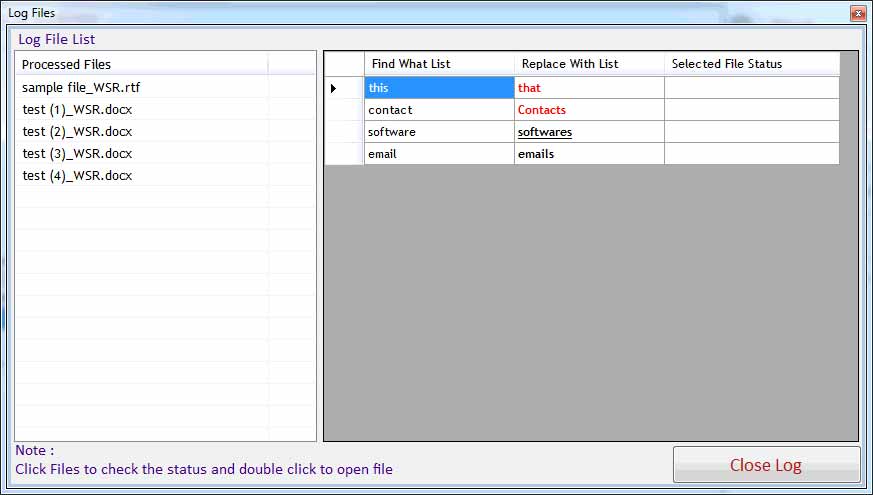
Create Log File : Check this option if you want to create a log files for analyzing your file and word process.
Clear Previous Highlight from files: Check this option if you want to remove all previous highlighted text, it only clear Back-Color and ForeColor in file.
Overwrite : Check this option if you are reprocessing the same files. It will overwrite previous files.
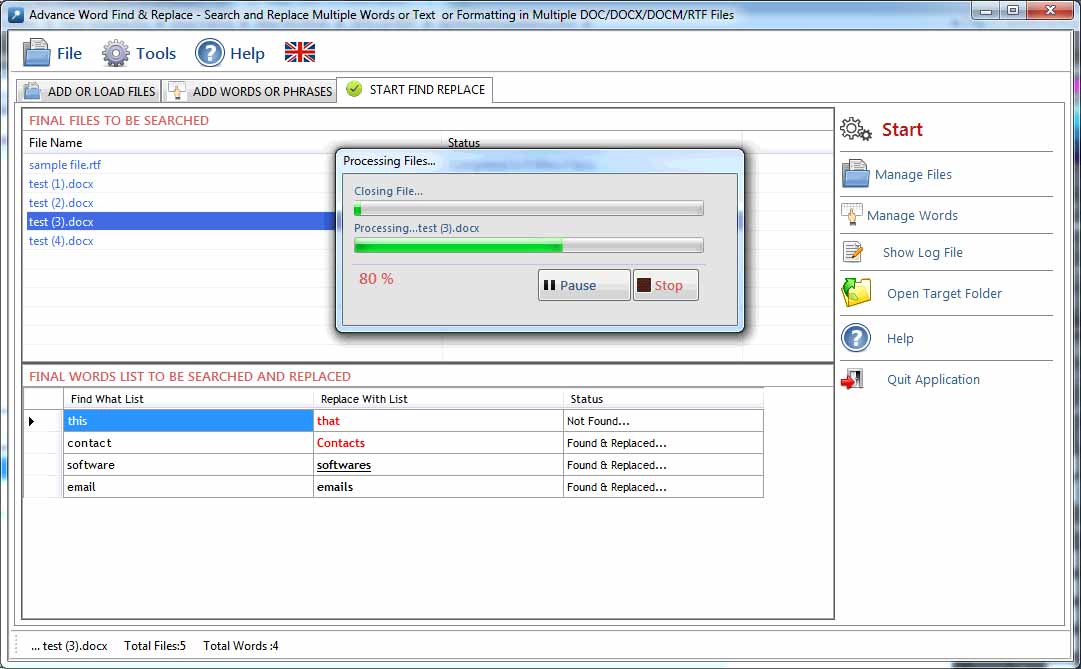
Start Process : Press "Start Search & Replace" to start the Find & Replace process.
Stop Process : To Stop the Find and Replace process.
Visit: https://neurane.com/user/ Now Login
Step 1 : Click on License Panel -> Manage License
Step 2 : Find License Key and then Click on Deactivate


Copyright © Technocom