How to remove hyperlink in excel from multiple cells?
Q 1 . How to Register, Buy and Activate the software?
li>Registration window will be display in the un-registered version every time.
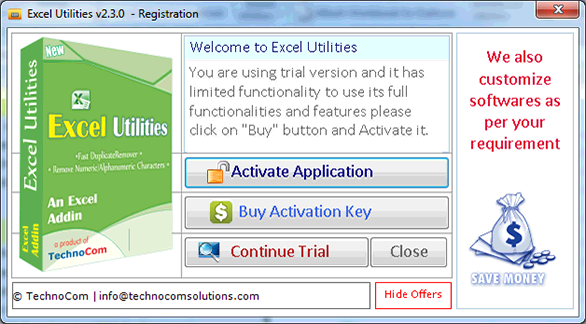
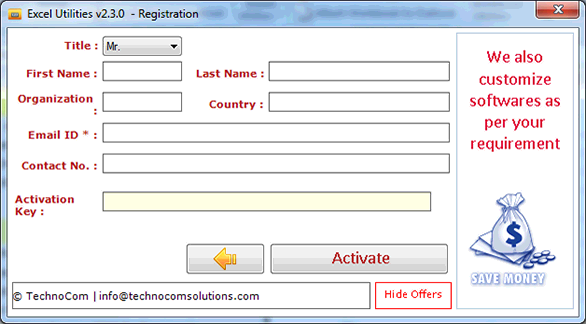
Register : To register the "Excel Utilities" click on the "Activate Application" Button and fill the Registeration Detail with the Activation Code.
Buy : You have to Buy "Excel Utilities" to get Activation Code. You Can Buy it From our Site by Clicking on "Buy Activation Key" button.
Try It : You can use demo version of "Excel Utilities" by clicking on "Continue Trial" Button.
Q 2 . How to use Excel Utilities Software?
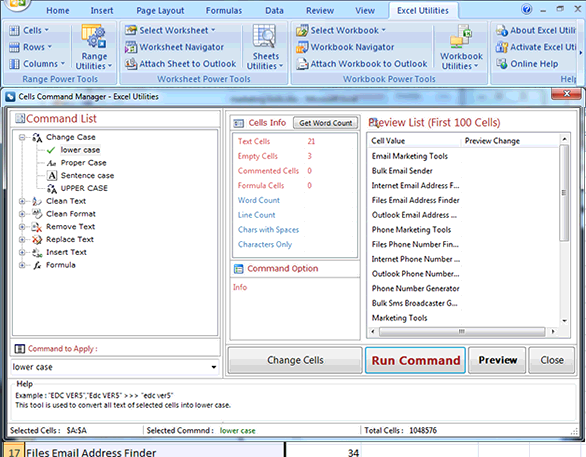
There is many Options in Excel Utilities software given Below. To apply First select the command and then press Run Command button to aaply. After apply the command undo is not possible thats mean that the undo command is not working.
Note: You have to need .Net Framework 4.0 in your system and Visual Studio (VSTO) Run Time. If these softwares not installed in your system the Excel Utilities software not working properly. The .Net Framework 4.0 is automatically installed to your system if it is not installed in your system but you have to download Visual Studio (VSTO) software for 64bit window from given link below. Download Visual Studio (VSTO)
Q.3. How to use Change Case Option ?
There is many Options in Change Case given Below
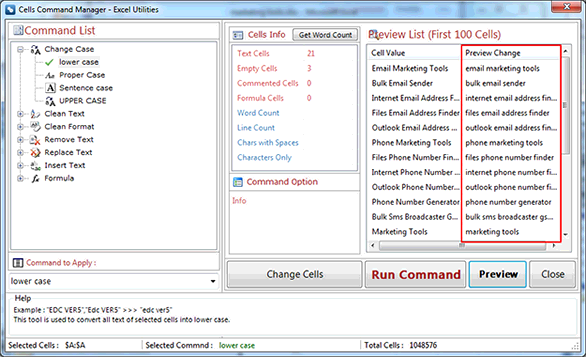
Lower case
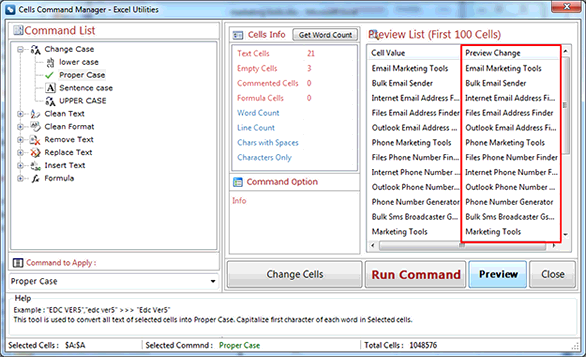
Proper Case
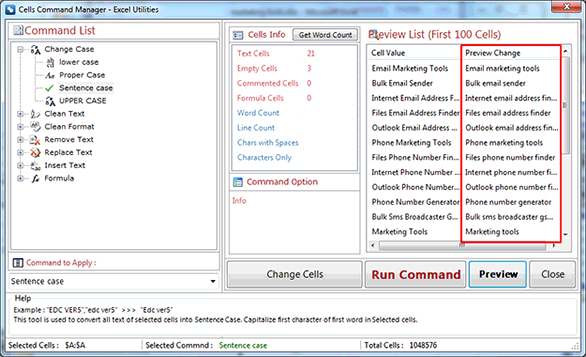
Sentence case
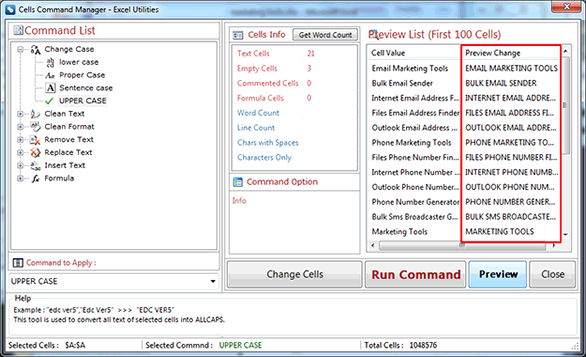
UPPER CASE
lower case
This tool is used to convert all text of selected cells into Lower case. Example:
Macro, EXCEL >> macro, excel
How to change Proper Case in excel?
This tool is used to convert all text of selected cells into Proper case. Capitalize first character of each word in selected cells. Example:
marketing tools >> Marketing Tools
How to change Sentence case in excel?
This tool is used to convert all text of selected cells into Sentence case. Capitalize first character of first word in selected cells. Example:
marketing tools >> Marketing tools
How to Change all selected text to UPPER CASE or Capital Letters in excel?
This tool is used to convert all text of selected cells into AllCaps. Example:
marketing tools >> MARKETING TOOLS
Q.4. How to use Clean Text Option?
There is many Options in Clean Text given Below
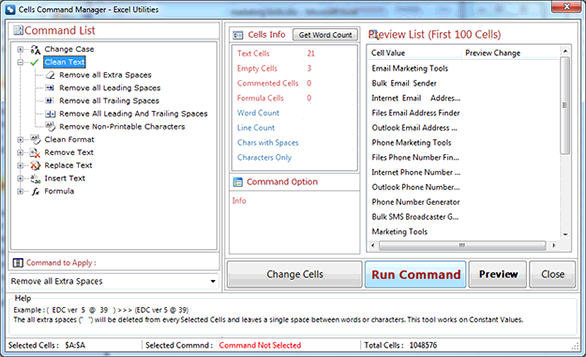
Remove all Extra spaces
Remove all Leading spaces
Remove all Trailing spaces
Remove all Leading and Trailing spaces
Remove Non-Printable Characters
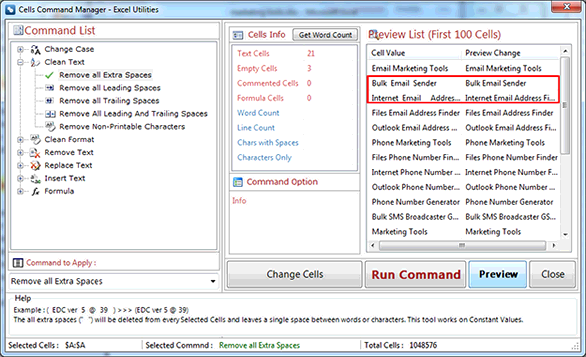
How to Remove all Extra spaces in Excel?
The all extra sapces (" ") will be deleted from every selected cells and leaves a single space between words or characters. This tool works on Constant values. Example:
( EDC ver 5 @ 39 ) >> (EDC ver 5 @ 39)
How to Remove all Leading spaces in Excel?
The all Leading sapces (" ") will be deleted from every selected cells.This tool works on Constant values and Formulas can be skipped or calculated to their Constant values before deletion. Example:
( EDC ver 39 ) >> (EDC ver 39 )
How to Remove all Trailing spaces in Excel?
The all Trailing sapces (" ") will be deleted from every selected cells.This tool works on Constant values and Formulas can be skipped or calculated to their Constant values before deletion. Example:
( This is best Excel Addins ) >> ( This is best Excel Addins)
. How to Remove all Leading and Trailing spaces in Excel?
The all Leading and Trailing sapces (" ") will be deleted from every selected cells.This tool works on Constant values and Formulas can be skipped or calculated to their Constant values before deletion. Example:
( This is best Excel Addins ) >> (This is best Excel Addins)
How toRemove Non-Printable Characters in Excel?
This command is used to remove all non-printable characters like paragraph, line break, section, tab, non-width joiner and other non visible characters from selected cells. Example:
Paragraph, Return Carriage, Tab and Section Mark
Q.5. How to use Clean Format option?
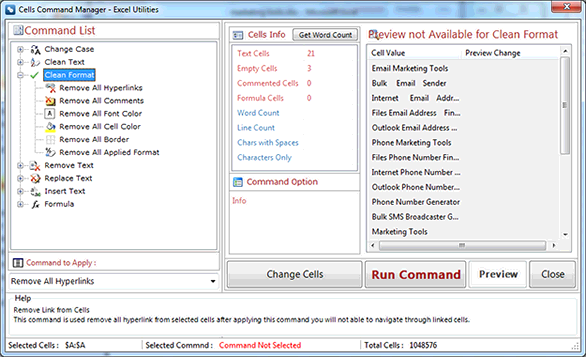
There is many Options in Clean Format given Below
Remove all Hyperlinks
Remove all Comments
Remove all Font Color
Remove all Cell Color
Remove all Border
Remove all Applied Format
How to Remove all Hyperlinks in Excel?
Remove Links from cells.
This command is used to remove all hyperlink from selected cells after applying this command you will not able to navigate through linked Cells.
How to Remove all Comments in Excel?
Remove Comment Box from cells.
This command is used to remove all comments from selected cells. Comment box will not appear after applying this command on hover of mouse pointer on cells.
How to Remove all Comments in Excel?
Remove Comment Box from cells.
This command is used to remove all comments from selected cells. Comment box will not appear after applying this command on hover of mouse pointer on cells.
How to Remove all Cell Color in Excel?
Remove Background Color of cells.
This command is used to remove all bg color of Selected Cells.
How to Remove all Border in Excel?
Remove all borders from cells.
This command is used to remove all applied border from selected cells.
Q.6. How to use Remove Text option?
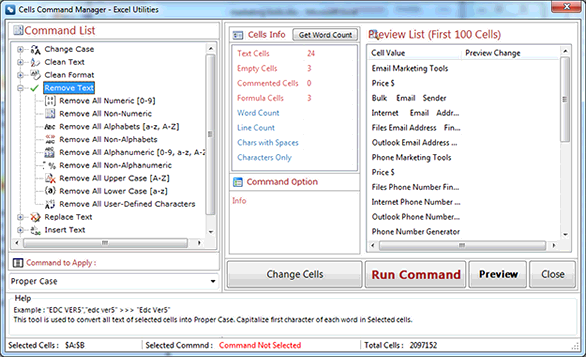
There is many Options in Remove Text given Below
Remove all Numeric [0-9]
Remove all Non-Numeric
Remove all Alphabets [a-z, A-Z]
Remove all Non-Alphabets
Remove all Alphanumeric [0-9, a-z, A-Z]
Remove all Non-Alphanumeric
Remove all Upper Case [A-Z]
Remove all Lower Case [a-z]
Remove all User-Defined Characters
How to Remove all Numeric [0-9] values in Excel?
Only numbers (0-9) will be deleted from every Selected Cells and leaves only alphabet_other characters. This tool works on Constant values and Formulas can be skipped or calculated to their constant values before deletion. Example:
(EDC ver@ 39) >> (EDC ver@)
How to Remove all Non-Numeric characters in Excel?
This command is used to remove all non-numeric characters from selected cells. It will leave only numeric characters[0-9]. Example:
EDC ver5@39 >> 539
How to Remove all Alphabets [a-z, A-Z] characters in Excel?
Only alphabet (a-z/A-Z) will be deleted from every Selected Cells and leaves only numbers_other characters. This tool works on Constant values and Formulas can be skipped or calculated to their constant values before deletion. Example:
(EDC ver 5@39) >> ( 5@39)
How to Remove all Non-Alphabets characters in Excel?
This command is used to remove all non-alphabet characters from selected cells. It will leave only alphabet characters[A-Z] and [a-z]. Example:
EDC ver5@39 >> EDC ver
How to Remove all Alphanumeric [0-9, a-z, A-Z] characters in Excel?
Only alphabet and numeric (a-z/A-Z/0-9) will be deleted from every Selected Cells and leaves only special characters_other characters. This tool works on Constant values and Formulas can be skipped or calculated to their constant values before deletion. Example:
(EDC ver 5@39) >> ( @)
How to Remove all Non-Alphanumeric in Excel?
This command is used to remove all non-alphanumeric characters from selected cells. Example:
(EDC ver@ 39) >> EDCver39
How to Remove all Upper case and Lower case characters in Excel?
Remove all Upper Case [A-Z]
Only Allcaps (A-Z) will be deleted from every Selected Cells and leaves only lower case characters, numbers_other characters. This tool works on Constant values and Formulas can be skipped or calculated to their constant values before deletion. Example:
(EDC ver@ 39) >> ( ver@ 39)
Remove all Lower Case [a-z]
Only lower case (a-z) will be deleted from every Selected Cells and leaves only Allcaps characters, numbers_other characters. This tool works on Constant values and Formulas can be skipped or calculated to their constant values before deletion. Example:
(EDC ver@ 39)>>(EDC @ 39)
How to Remove all User-Defined Characters in Excel?
User can define any characters (numbers, alphabet, special chars, accented chars etc.) to delete from every Selected Cells. This tool works on Constant values and Formulas can be skipped or calculated to their constant values before deletion. Example:
User defines "(@)" chars to delete from "(EDC ver5@ 39)" result will be EDC ver5 39
Q.7. How to use Replace Text option?
There is many Options in Replace Text given Below
All Text Before nth Character(s)
All Text After nth Character(s)
X no. of chars Before nth character
X no. of chars After nth character
X no. of Leading character(s)
X no. of Trailing character(s)
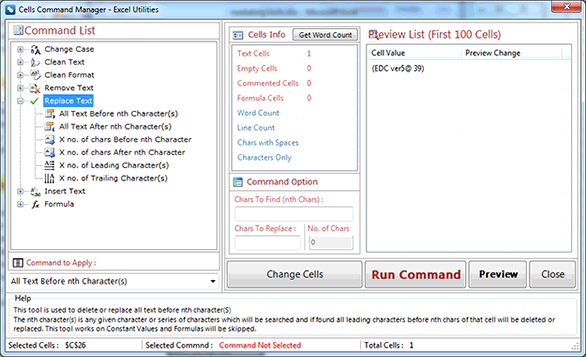
How to Replace All Text Before nth Characters in Excel?
This tool is used to delete or replace all text before nth character(s).
The nth character(s)
is any given character or series of characters which will be searched and if found all leading characters before nth chars of that cell will be deleted or replaced. This tool works on Constant values and Formulas can be skipped.
Q.8. use Insert Text Option?
There is many Options in Insert Text given Below
Leading Characters
Trailing Characters
Before nth character(s)
After nth character(s)
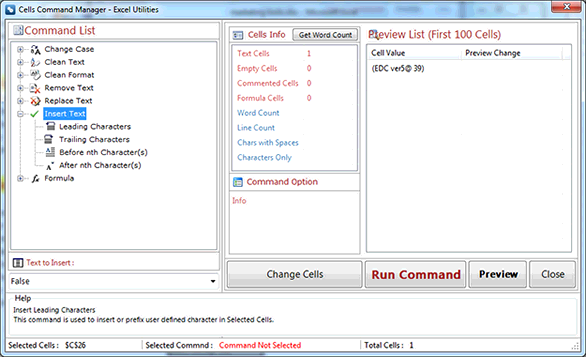
How toadd text to the beginning of all cells in Excel?
Insert Leading Characters
This command is used to insert or prefix user defined character in Selected Cells.
How to add text to the end of all cells in Excel?
Insert Trailing Characters
This command is used to insert or prefix user defined character in Selected Cells.
Q.9. How to Remove Empty Rows in Excel?
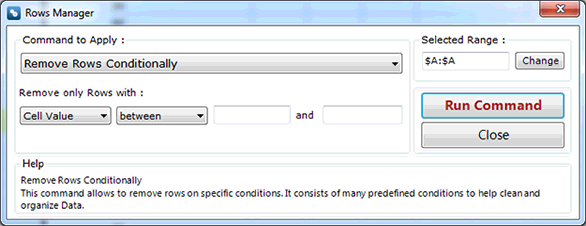
Remove Rows Conditionally
This command allows to remove rows on specific conditions. It consists of many predefined conditions to help clean and Organize Data.
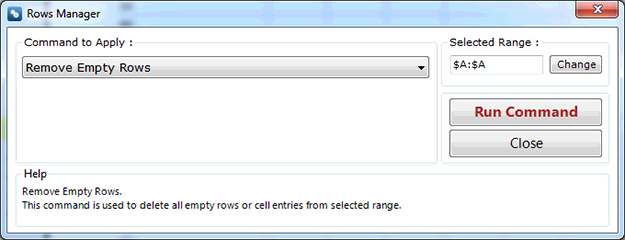
Remove Empty Rows
This command is used to delete all empty rows or cell entries from selected range.
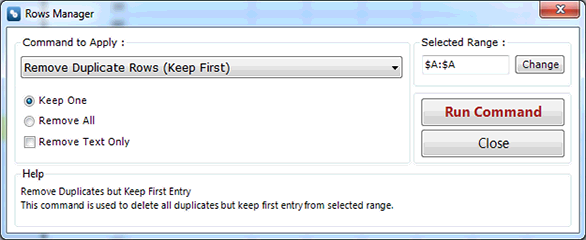
Q.10. How to Remove Duplicate Rows in Excel?
Remove Duplicate Rows keep First
This command is used to delete all duplicates but keep first entry from selected range.
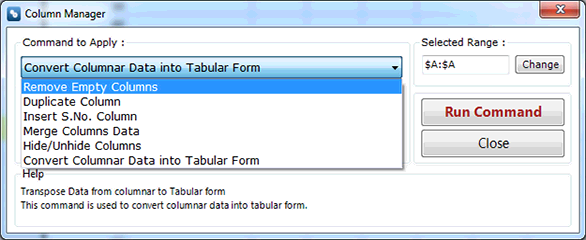
Q.11. How to Remove Empty Column in Excel?
This command allows to remove all empty column from selected range.
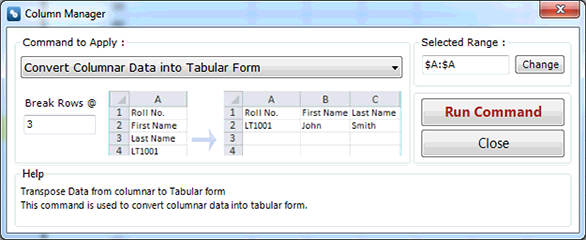
Q.12. How to Convert Columnar Data into Tabular Form in Excel?
This command allow the user to convert columnar data into tabular Form
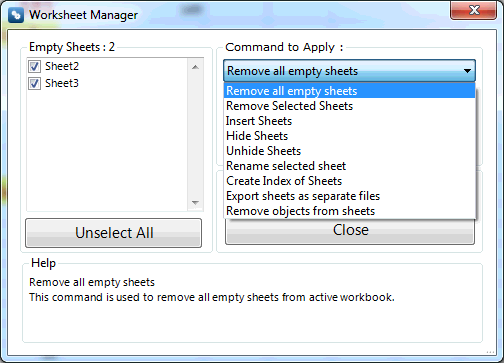
Q.13. How to Remove all Empty Sheets in Excel?
Sheets Utilities
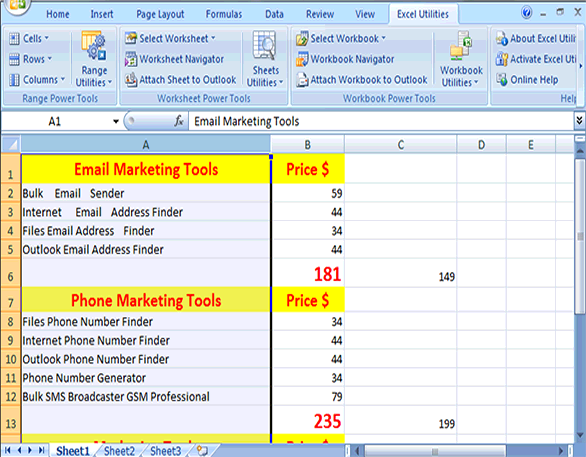
There are many command to use in this utilities. you can see this in image given below select option from dropdown list. Remove all Empty Sheets
This command is used to remove all empty sheets from active workbook.
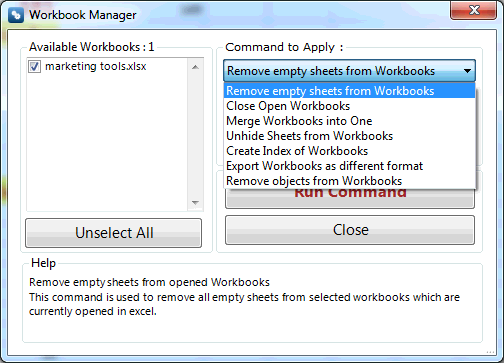
Workbook Utilities
There are many command to use in this utilities. you can see this in image given below select option from dropdown list.
Remove all Empty Sheets from workbooks
This command is used to remove all empty sheets from selected workbooks which are currently opened in excel.
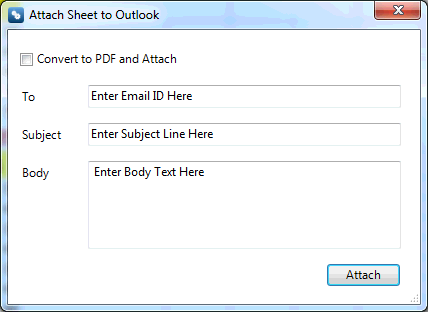
Q.15. How to Attach Sheet to Outlook in Excel?
With this option you can attach your active excel sheet configered to mail Id. If you select the given check box then the active sheet should be converted into PDF.
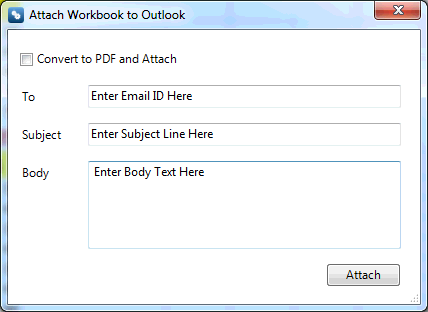
Q.15. How to Attach Workbook to Outlook in Excel?
With this option you can attach your selected workbooks which are currently opened in excel configered to mail Id. If you select the given check box then the active workbook should be converted into PDF.
We are experiencing some issues with our website & database due to migration of server
Please be patient as it will be restored soon
Also existing users please don’t sign up again and wait for the full restoration
Notice
Apologies for the inconvenience.
We are currently experiencing a server issue that has temporarily affected access to our software product. Our technical team is working diligently to resolve this, and we anticipate the issue will be fixed within the next 72 hours.
We truly appreciate your patience and understanding during this time.