

|
a   Translation Ad


Multiple Phone Bulk SMS Sender v5.0
(With 10 Phones Support Utility for PC)
IMPORTANT NOTE: PC Suite is required for the Mobile Nokia, Samsung, Sony Ericsson, Motorola, LG etc.

Click on Video Tour
button to go through an
video based tutorial
1: Buy Registration
2: How it Works

Step 1: Registration

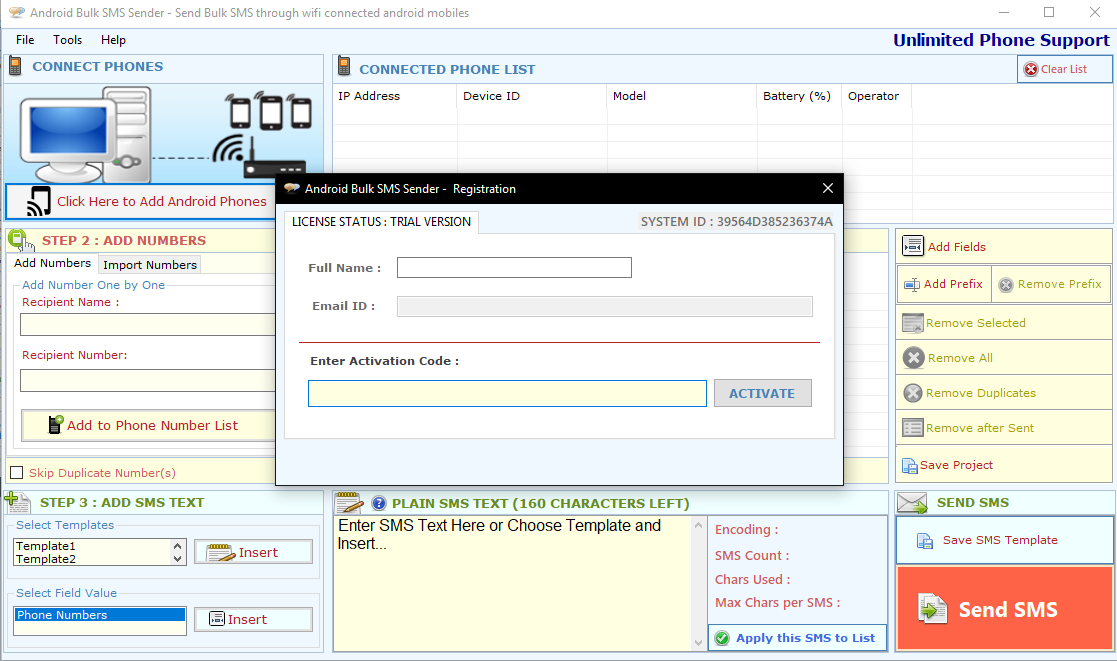
Register : To register the "Bulk SMS Sender" click on the "Register Now" Button and fill the Registration Detail with the Activation Code.
Buy : You have to Buy "Bulk SMS Sender" to get Activation Code. You Can Buy it From our Site by Clicking on "Buy Bulk SMS Sender" button.
Try Demo: You can use demo version of "Bulk SMS Sender" by clicking on "Try Demo" Button

registration

registration

Download Links
Download
 Download
Info
Limitation
user can send only 60 Character in demo version.
File Size
1.5 MB
version
5.0
 Price
$ 119.95
Buy
Buy now
Support
Excel Data Cleaner support
We Accept
cards


How to use Multiple Phone Bulk SMS Sender
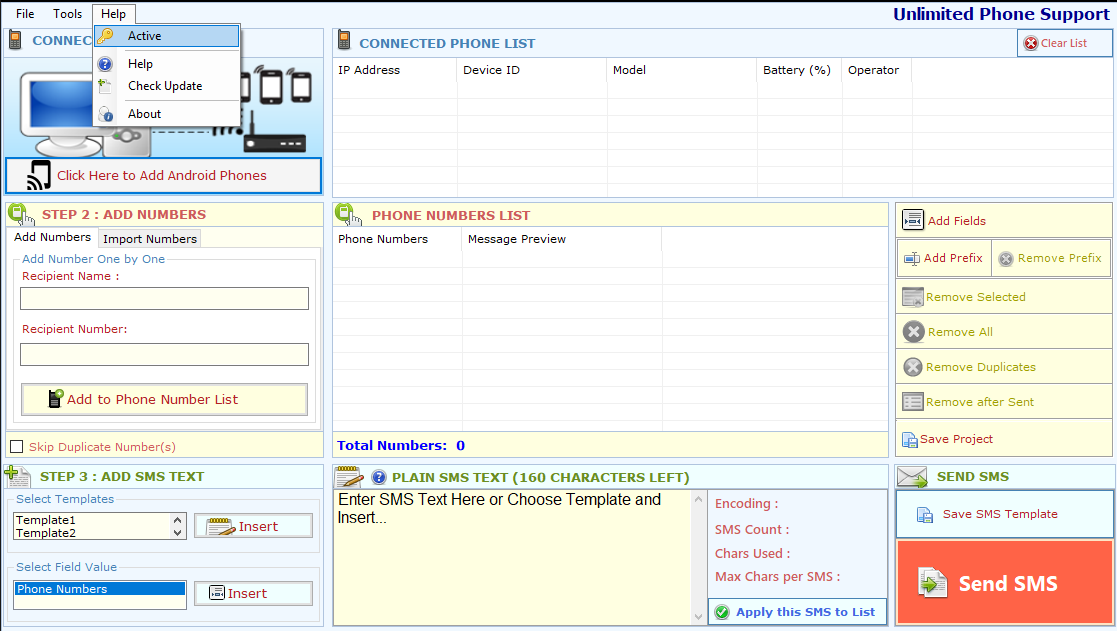
Bulk SMS Sender is very easy to use tool; you can go through step by step to use its functionalities.
STEP 1: CONNECT PHONES

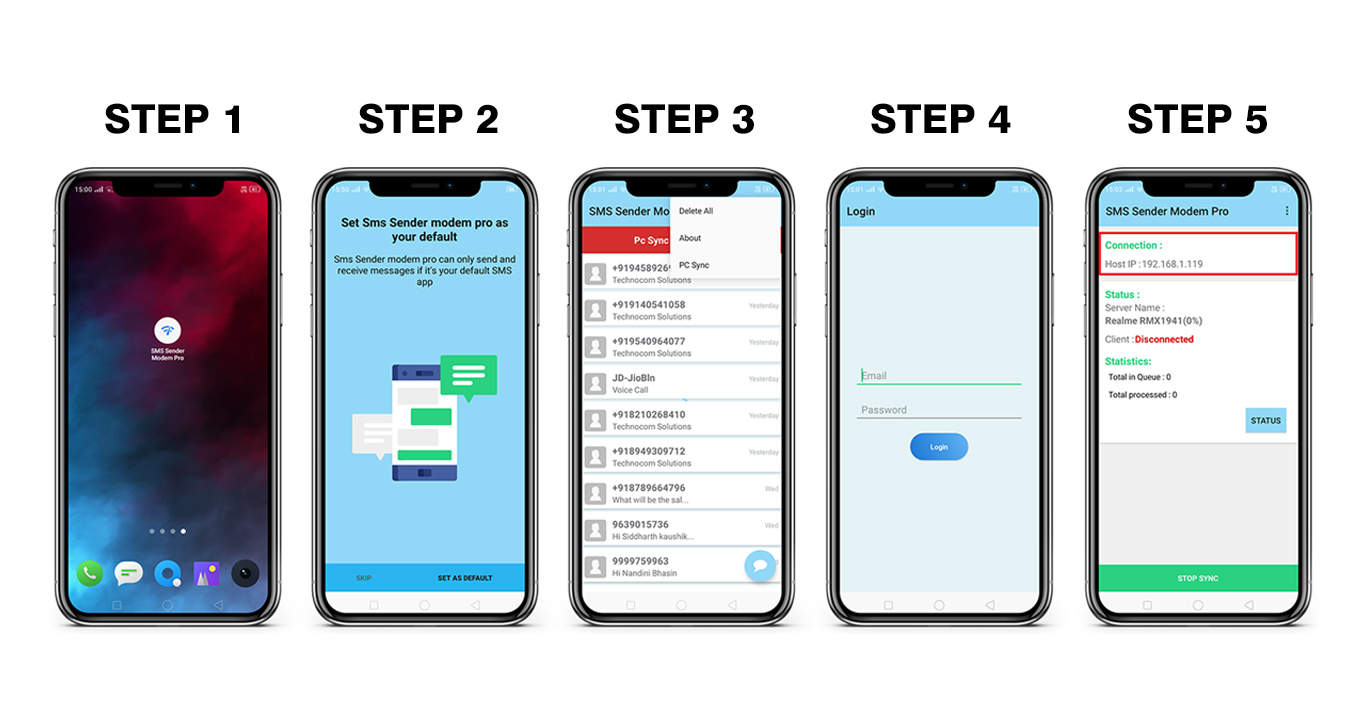
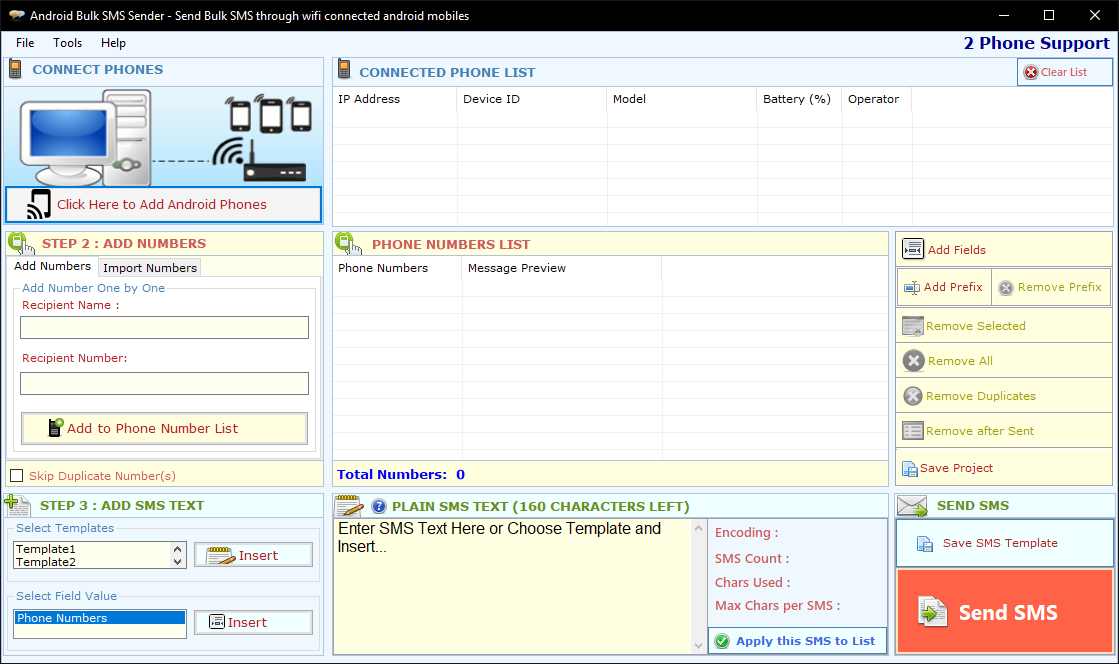
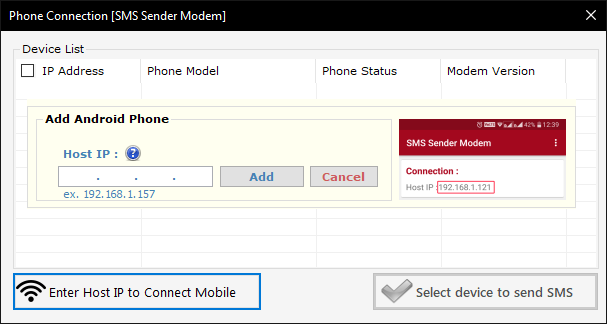
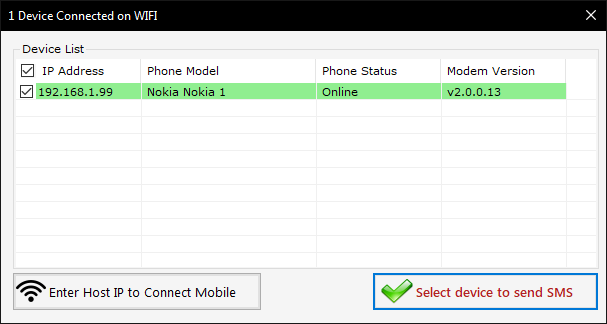
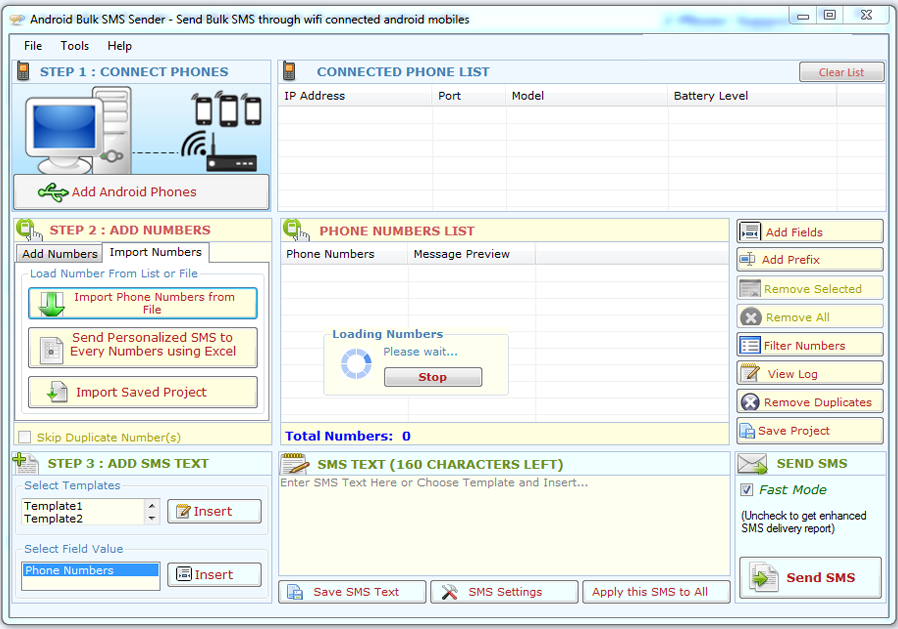
Start Connecting Phones: "Bulk SMS Sender" will automatically detect the phones connected to your PC on start-up or you can detect connected phone by clicking on "Start Connecting Phones" button. Connected phones will be listed in CONNECTED PHONE LIST. You have to check on listed phones to send SMS through them. You can select only single mobile phone in this version. See Figure 1.0, 1.1 and 1.2

Multiple Bulk SMS Sender
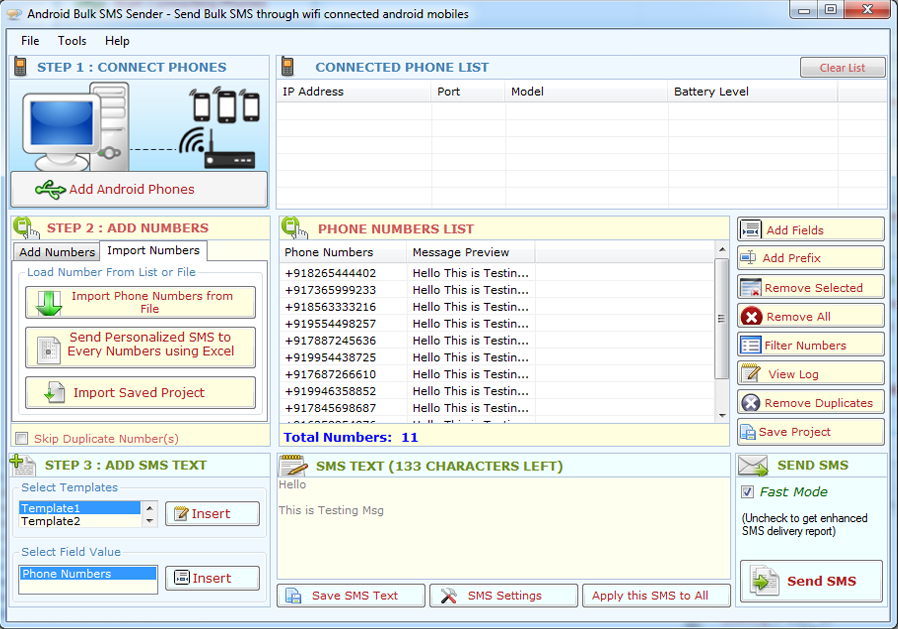
Figure 1.0

Multiple Bulk SMS Sender
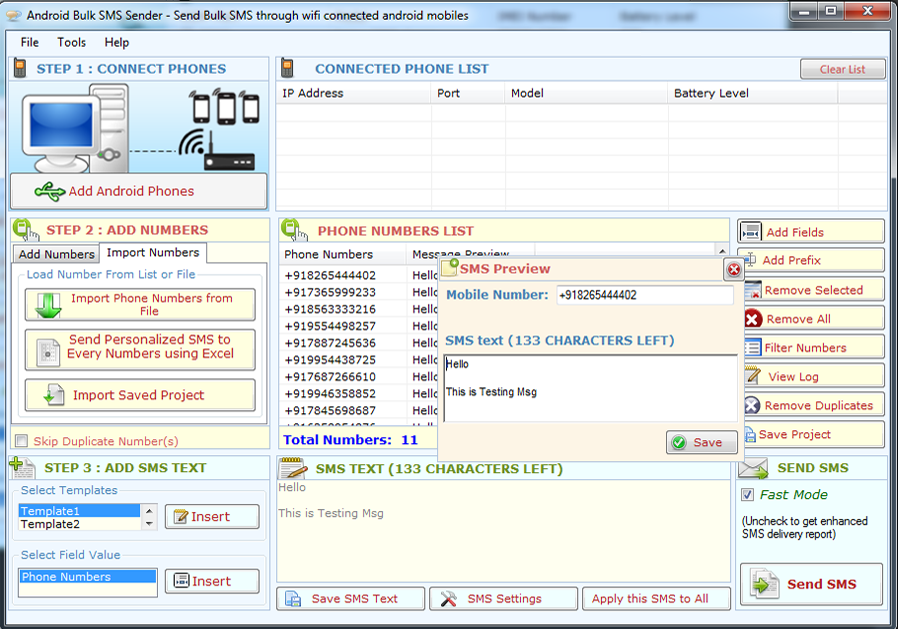
Figure 1.1

Multiple Bulk SMS SenderFigure 1.2

IMPORTANT NOTE: PC Suite is required for the Mobiles Nokia, Samsung, Sony Ericsson, Motorola, LG etc.

Note: If no Mobile Phone Connected to the PC, the dialog window will be shown as below. so please be sure that you have connected a mobile phone correctly to the PC.
STEP 2: ADD OR IMPORT NUMBERS
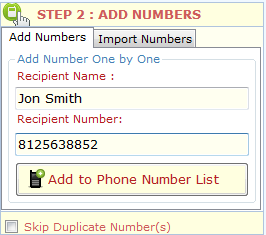
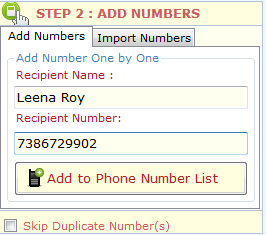
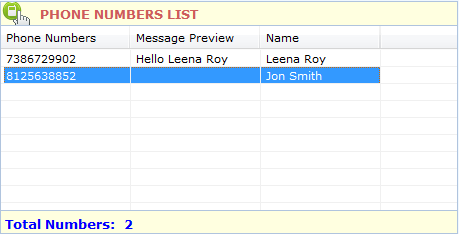
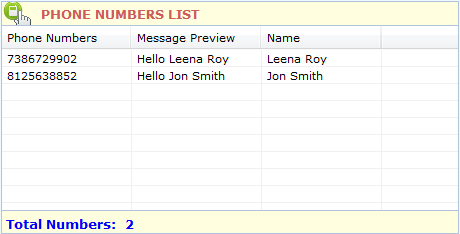
Add Numbers: You can add numbers one by one From "Add numbers" Tab. You can enter the number in "Recipient Number" box and click on "Add to Phone Number List" to add number in list. You can also enter the "Recipient Name" it is optional, See Figure 2.0.
Multiple Bulk SMS Sender
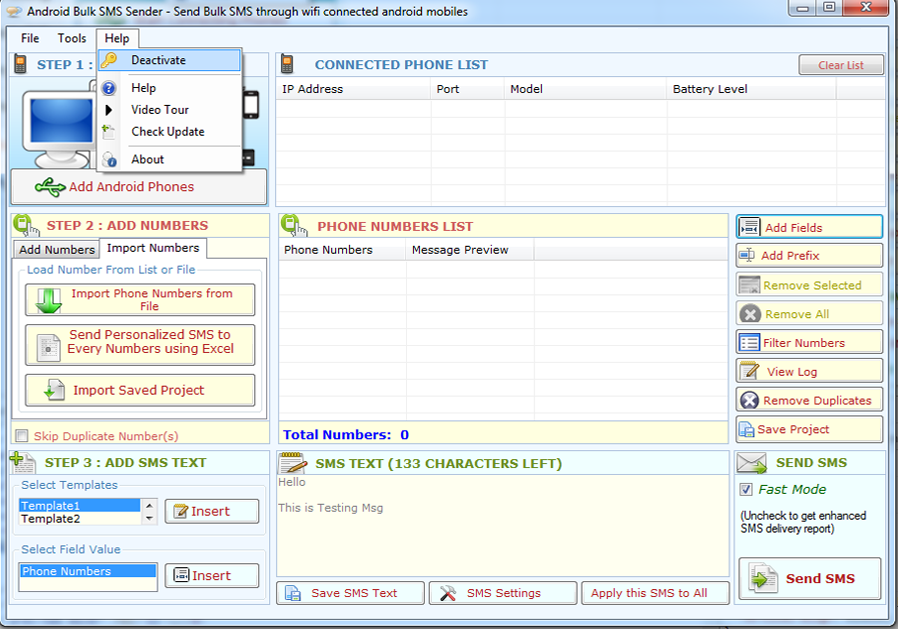
Figure 2.0
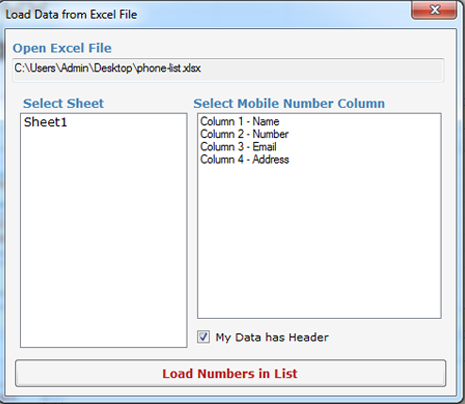
Import Numbers: You can import number directly from a file (.txt, .rtf, .xls, .xlsx). Open "Import Numbers" tab and click on "Import Phone Numbers from File" to Import numbers from file, and then select the file from which you want to import numbers as shown below. If you select an Excel file then it will open another dialog box in which you can select the Sheet and Column to Import numbers as shown in Figure 2.1.
Multiple Bulk SMS Sender
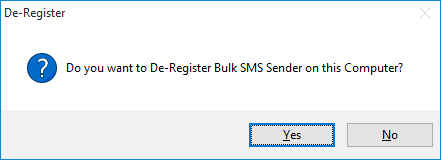
Figure 2.1
Multiple Bulk SMS Sender
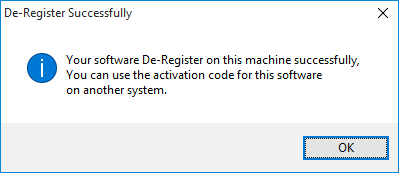
Figure 2.2
Personalized SMS using Excel file:

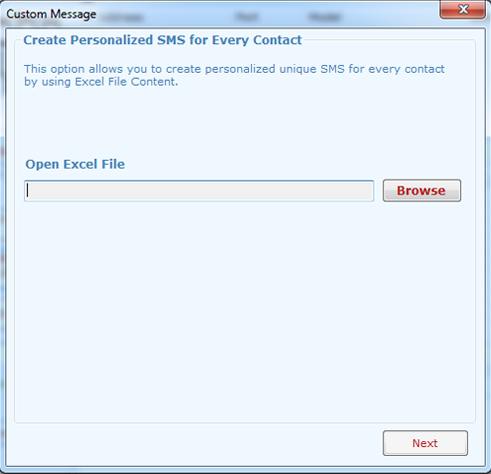
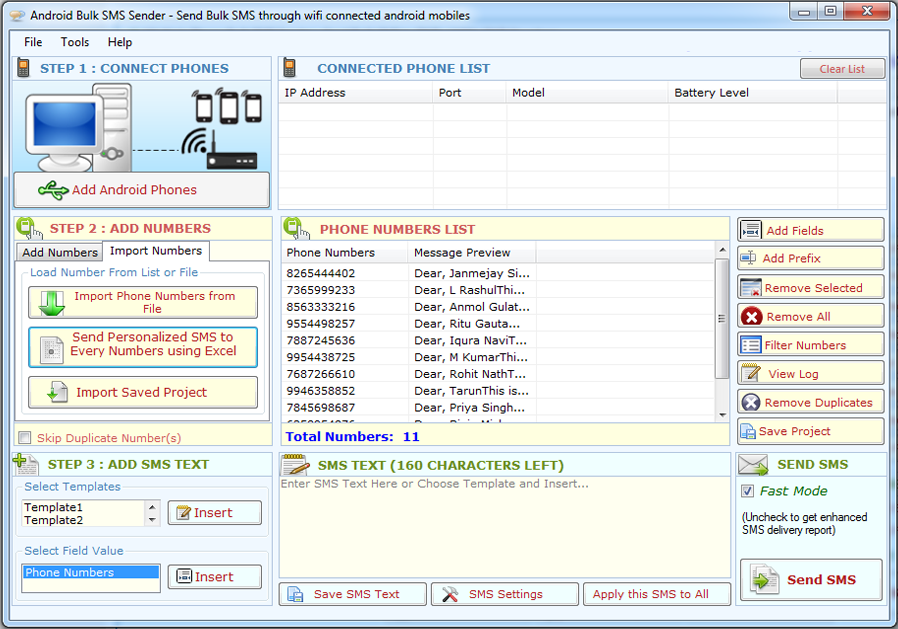
You can create personalized unique SMS for Every Number imported from Excel file. Click on "Send Personalized SMS to every Number using Excel File" button, It will Open a custom message wizard as shown below, now wizard guide you through creating custom messages for every imported numbers. Custom Message Wizard has three steps to follow

STEP 1:

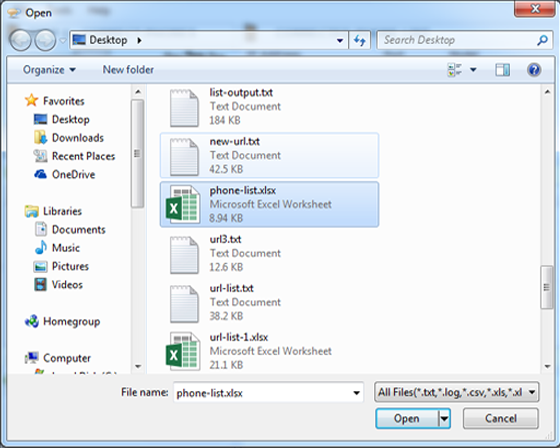
Open Excel File: Click on browse button to open Excel File.
Multiple Bulk SMS Sender

Multiple Bulk SMS Sender

STEP 2:

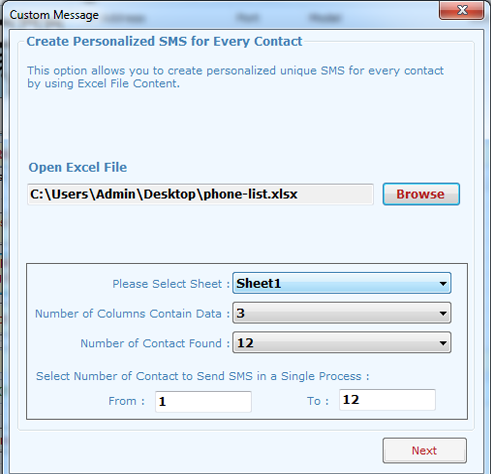
Select Sheet and Numbers of Data: You can see the Available Sheets in selected Excel file with Column and Data detail, Now select the Sheet from which you want to import numbers and select the range of data you want to extract from that sheets and click on Next. You can also select how many numbers you want to import by filling up "From" and "To" text box.
Multiple Bulk SMS Sender
STEP 3:
CREATE UNIQUE SMS:
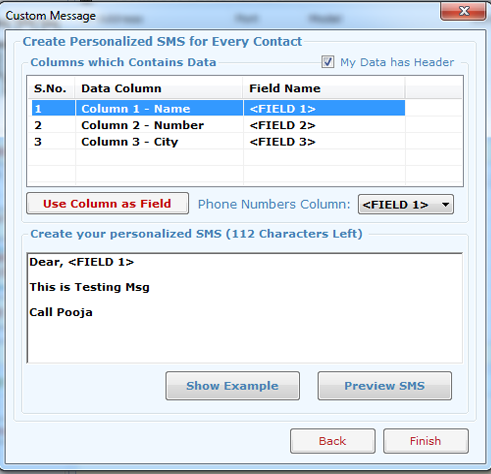
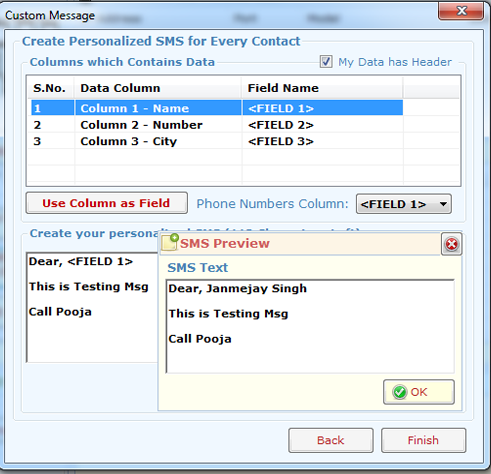
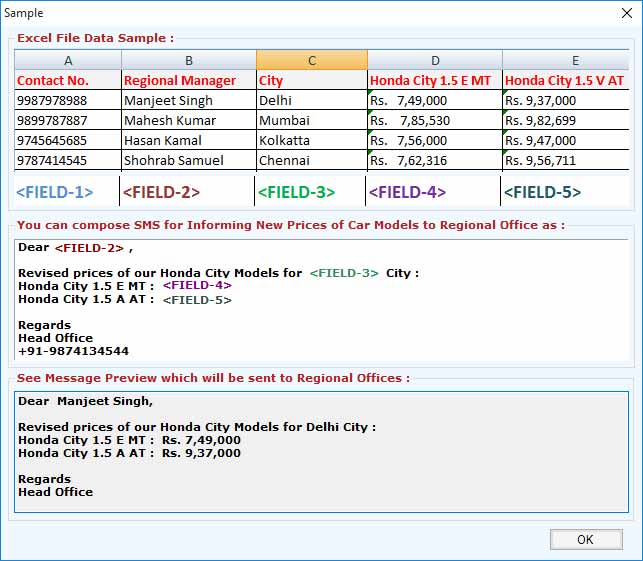
You can create your own custom message as shown in image below. You can see an example by clicking on Show Example button.
Multiple Bulk SMS Sender
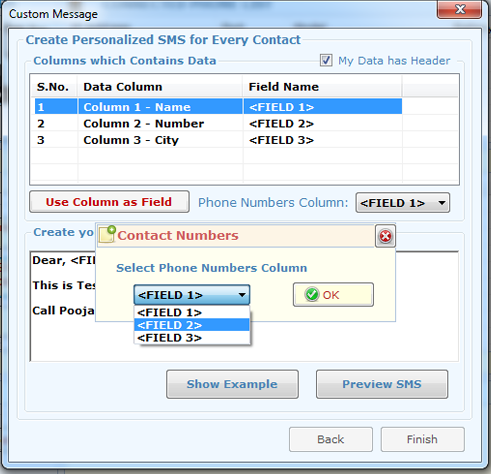
After creating the SMS you can preview the SMS by clicking on "Preview SMS" button now click on finish button and select the Column which contain the mobile number and click on Ok.

Multiple Bulk SMS Sender

Multiple Bulk SMS Sender

Multiple Bulk SMS Sender

Save project and Import Saved Project:
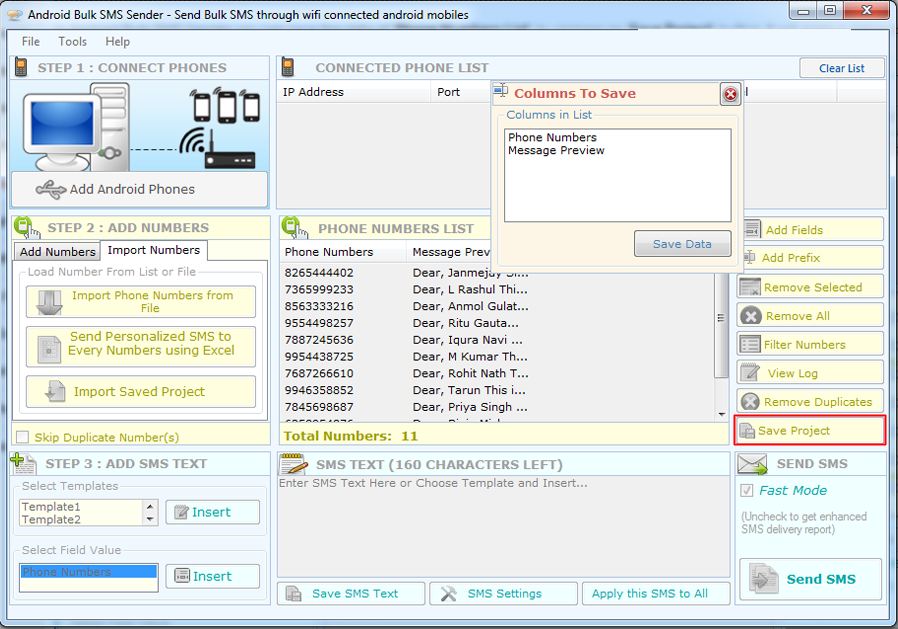
In "Bulk SMS Sender" you can save the data of "Phone Numbers List" by clicking on "Save Project" button. It will open a dialog box in which you can select the column to save data.
Multiple Bulk SMS Sender
Import Save Project:
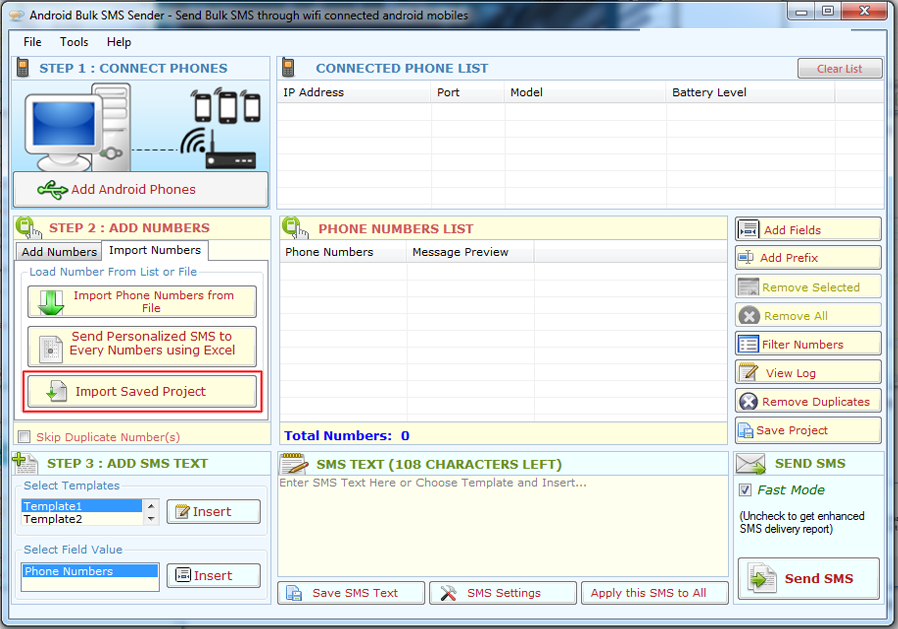
You can import saved project by clicking on "Import Save Project" and select the file.
Multiple Bulk SMS Sender
Save SMS Text:
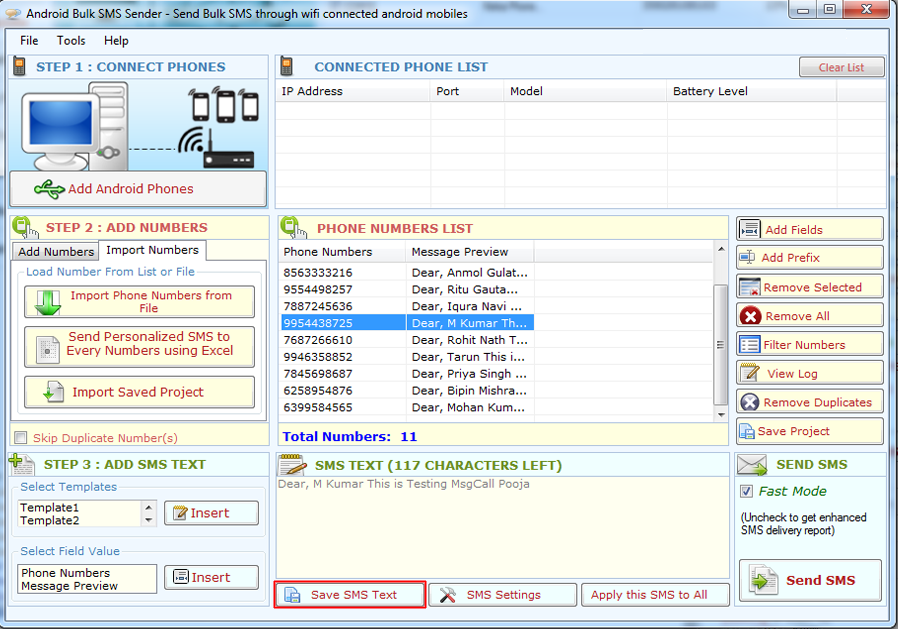
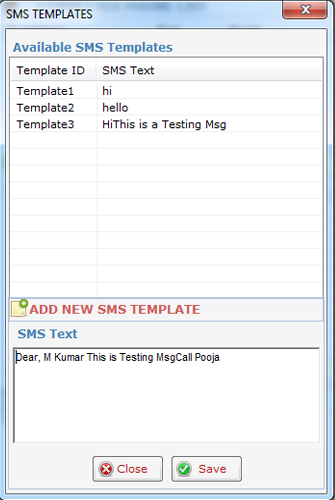
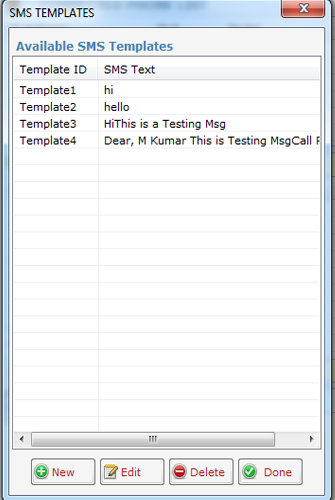
You can save SMS text use it as a Template in future use. You can save SMS text by Click on "Save SMS Text" button. It will open a new window as shown below Click on Save button to Save Template
Multiple Bulk SMS Sender

Multiple Bulk SMS Sender

Multiple Bulk SMS Sender

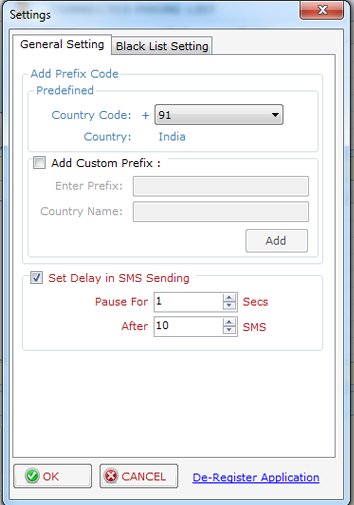
Settings:
Here you can set the  settings of Sending SMS.

1. Messages Priority
2. Country code as Prefix (as 91 for india).
3. Delay for SMS delivery.
4. SMS Limit
Multiple Bulk SMS Sender
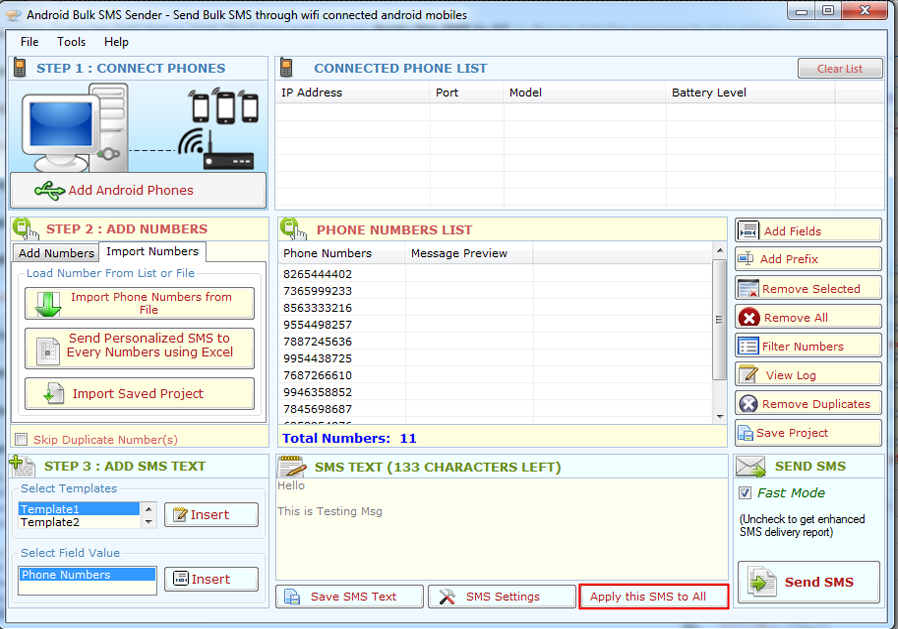
Apply SMS:
Enter the SMS text in "SMS text" box and click on "Apply this SMS to All" button to set the message for all numbers.
Multiple Bulk SMS Sender
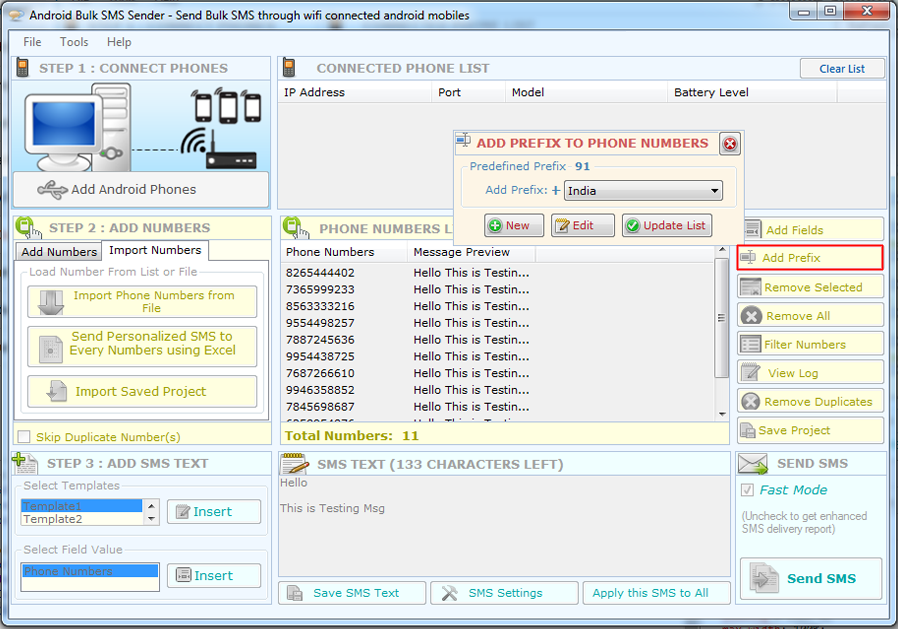
Add Prefix:
Click on "Add Prefix" button to add country code to all numbers in "Phone Number List" by clicking on Update List button
Multiple Bulk SMS Sender
Edit Number and SMS Text:
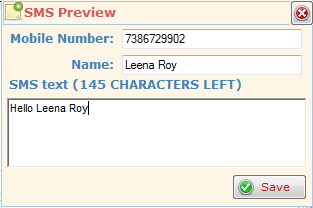
You can edit number and SMS text by double clicking on the number in Phone Number List.
Multiple Bulk SMS Sender
follow us on facebook
 
 
offer
 
offer
 
I bought Website Email Extractor software v3.8 and it worked perfectly for me for extract email id.This is the best and most affordable software on the Net.
~ Andrew Jones

Your software has increased my Excel capability tremendously and it is so cheap that I cannot believe it.
~ Susan

I was stuck with so many Emails on my Outlook and wanted to get all the Email addresses but was not finding the way out, Fortunately I found your unique software which could let extracts emails from my Outlook.
~ Dan Phillips

 
Go to Top