Q 1 . How to Register, Buy and Activate the software?
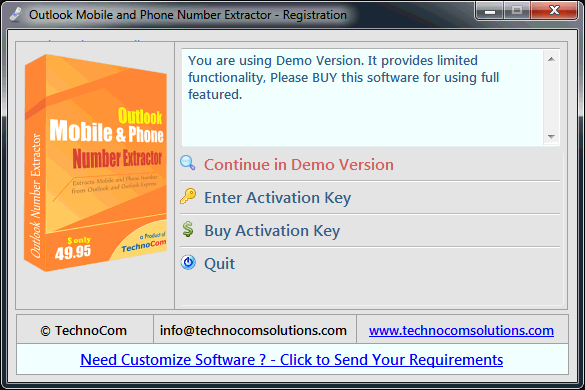
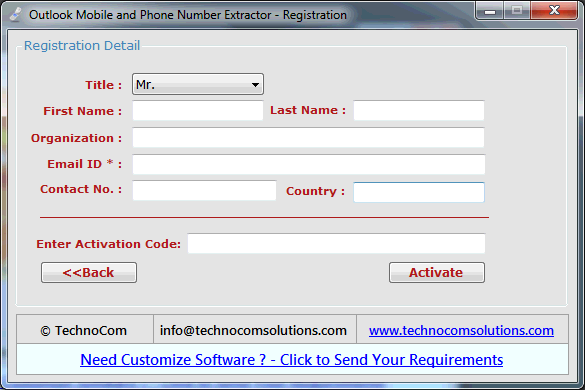
Register: To register the "Outlook Mobile and Phone Number Extractor" click on the "Enter Activation Key" Button and fill the Registration Detail with the Activation Code.
Buy : You have to Buy "Outlook Mobile and Phone Number Extractor" to get Activation Code. You Can Buy it From our Site by Clicking on "Buy Activation Key" button.
Try Demo: You can use demo version of "Outlook Mobile and Phone Number Extractor" by clicking on "Continue in Demo Version" Button
Q 2 . How to Select a Profile & Extract Phone Numbers From MS Outlook?
Extract Phone and Mobile Numbers from Microsoft Outlook:
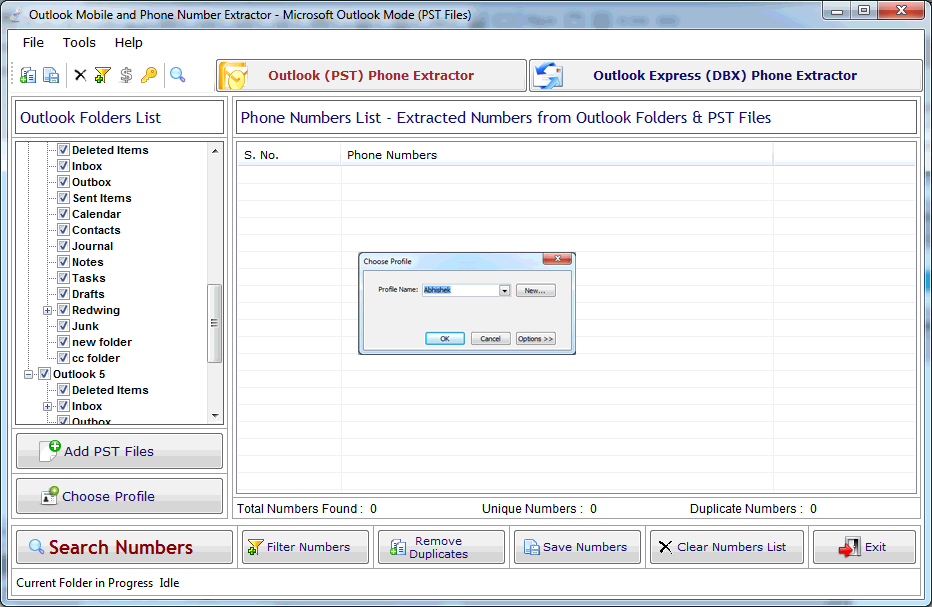
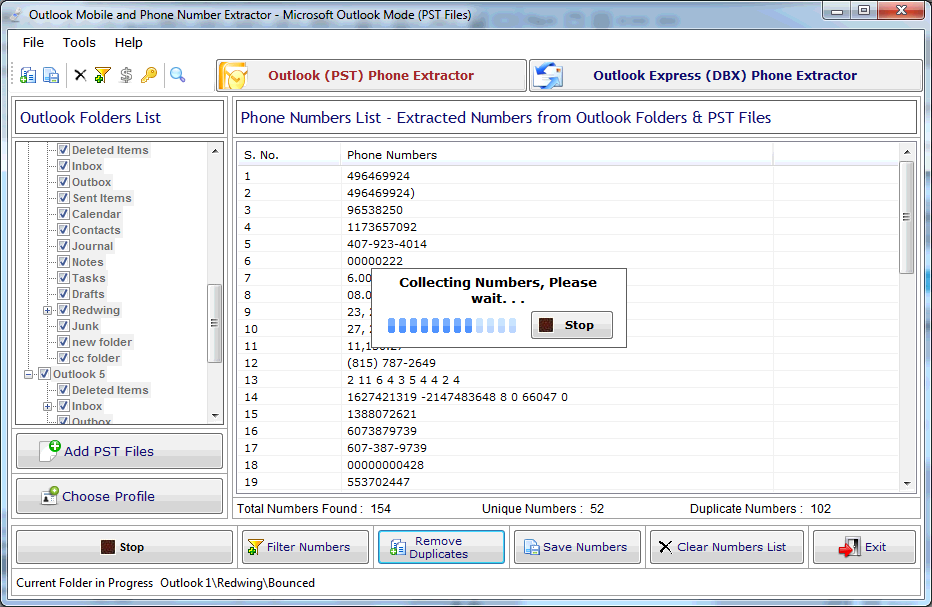
When you run the software, it will ask you to choose a profile in microsoft outlook.
Select a profile and click "Ok" button.
It will fill all available folders and sub-folders in tree control. in Tree control you can select folders from you want to extract Phone Numbers
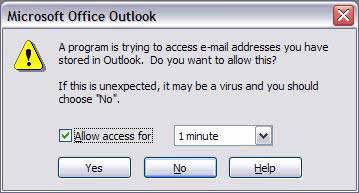
Allow for access session for 1minute, 2 minute and so on (if ASK).
Check the folders from left panel from which folders you want to extract Phone Numbers and un-check the folders from those you don't want to extract Phone Numbers.
if you un-check all folders, it will not iterates any folders.
Now press the "Search Numbers" button, extraction of numbers will be start.
Process can be stopped whenever you like by click "Stop" button.
Q.3. How to Select or Change a Profile?
You can add Microsoft Outlook (.PST) files by just click "Add PST Files" button windows like above.
Select .PST files from the location on harddrive and click "Ok".
Selected .PST files will be added to the currently selected profile. All folders from profile (with all newly added .pst files) would be updated in the tree control in left panel.
When you close the "Outlook Mobile and Phone Number Extractor" the .pst files will be removed from the profile.
Choose\Change Microsoft Outlook Profile Settings:
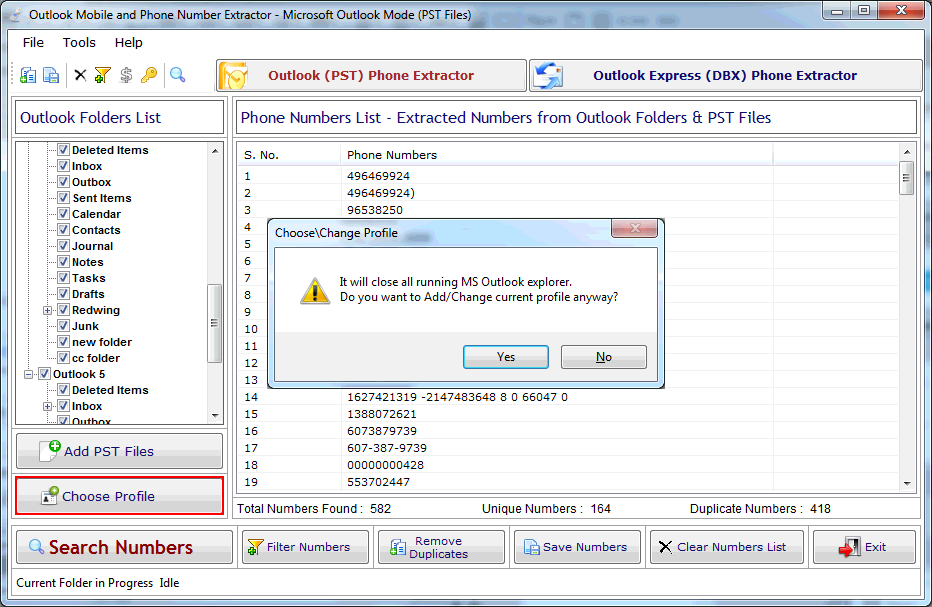
Now if "Microsoft Outlook" has many profiles except than default profile. you can choose different profile by click "Choose Profile" button.
"Choose Profile" dialog will be shown like below. please close/save your microsoft outlook before "choose / change" other microsoft outlook profile (otherwise it will close all microsoft outlook explorer).
Select available profile from "Choose Profile" dialog box (as in figure 1.2) and click "Ok" button
Q.4. How to Select Default Outlook Express (.DBX) Files & Add other .dbx files?
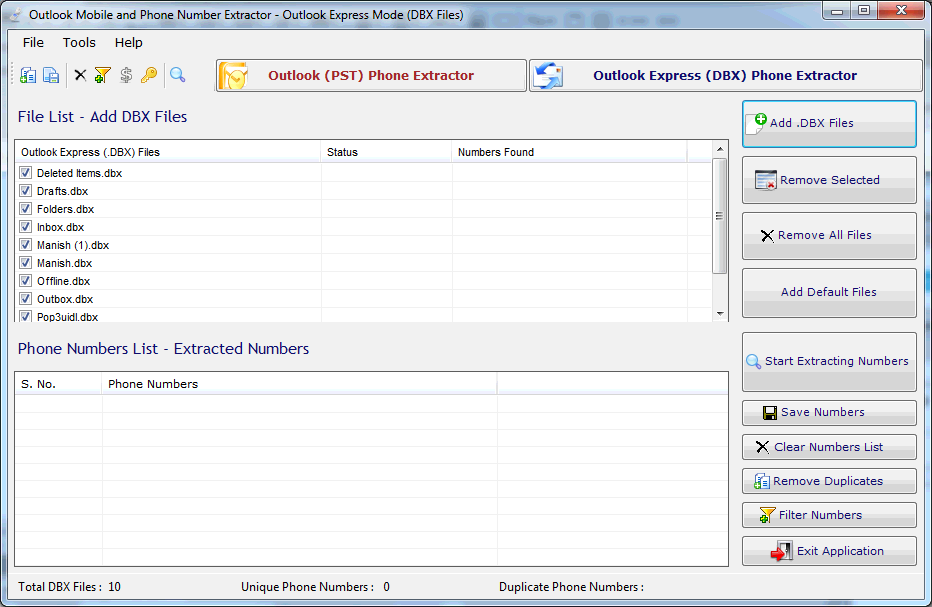
When you run the software, it will fill all available default Outlook Express(.DBX) files in files list.
You can add Outlook Express (.dbx) files by click "Add .DBX Files" button.
You can remove selected or all Outlook Express (.DBX) files by click "Remove All" & by pressing "Delete" button from keyboard.
Please check the .DBX files in the files list from which you want to extract Phone Numbers & un-check the .DBX files in the files list from which you don't want to extract Phone Numbers.
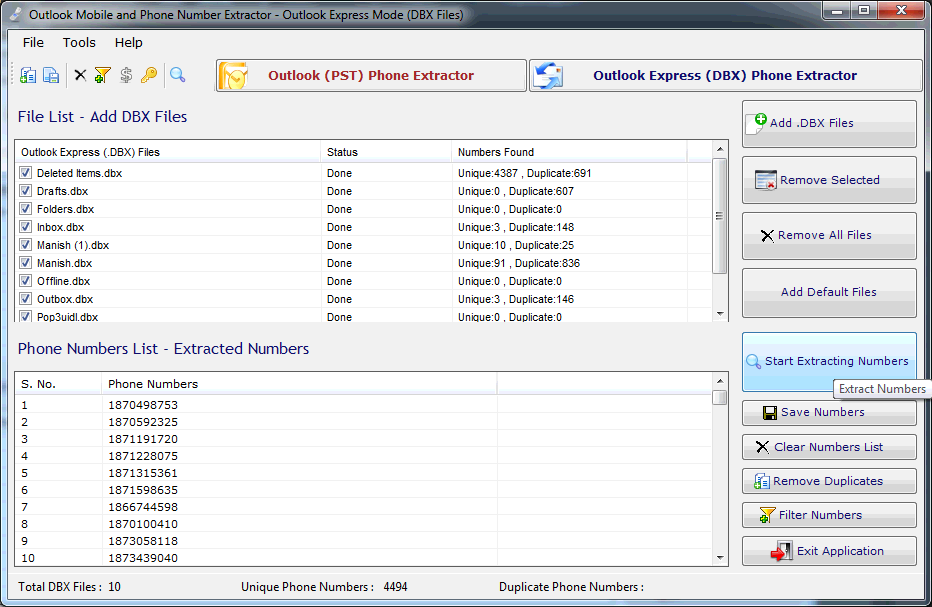
Finally Click "Start Extracting Numbers" button for extract Phone Numbers from all selected files.
Q.5. How to Filter Extracted Phone Numbers?
Remove Duplicates from Extracted Phone Numbers : you can remove duplicates from extracted Phone Numbers by click "Remove Duplicates" button. It removes duplicate Phone Numbers from the extracted Phone Numbers (if any).
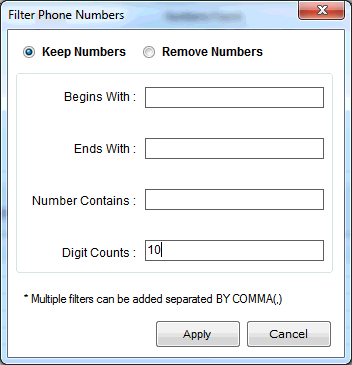
Filter Extracted Phone Numbers : you can filters all Extracted Phone Numbers with different keywords by click "Filter Numbers" button, you will have to set keywords those you want in Phone Numbers contains and dont. Filter ask every time for keywords when you want to filter
Q.6. How to Save Extracted Phone Numbers?
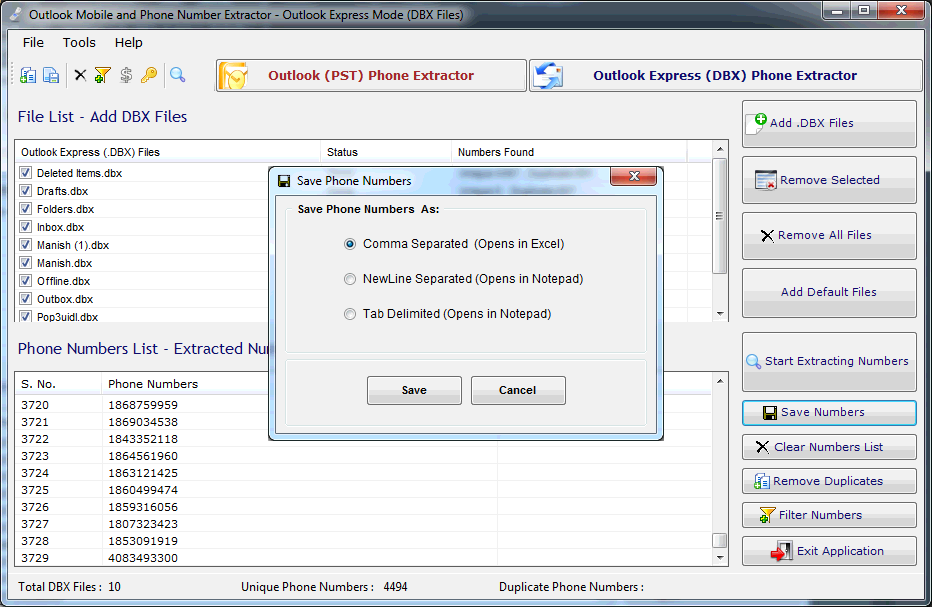
Extract Phone numbers can be saved in .CSV(Excel Format)/.txt/ new Line format.
Extracted Phone Numbers can be saved in registered version.
Q.7. How to Change Settings?
Click "Tools" menu-> "Options".
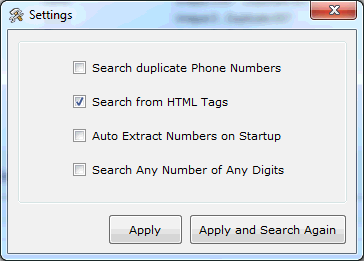
The dialog window will be shown like below. Here you can set default settings for the Outlook Mobile and Phone Number Extractor.
If you want to extract duplicate Phone Numbers with unique Phone Numbers, check the "Search Duplicate Phone Numbers" option.
You can set "Search from HTML tags" for Microsoft Outlook (PST) files, it will allow to this tool for extract Phone Numbers from HTML tags also.
In the default settings, you can set keywords for Phone Numbers contains and not contains.
Q.8. How to Deactivate or Transfer License to Another PC?
Visit: https://neurane.com/user/ Now Login
Step 1 : Click on License Panel -> Manage License
Step 2 : Find License Key and then Click on Deactivate
We would like to notify you that our server may experience down due to scheduled maintenance, and our software may not be operational during this period.